> ## Documentation Index
> Fetch the complete documentation index at: https://docs.equals.com/llms.txt
> Use this file to discover all available pages before exploring further.
# Calculated columns
> Attach columns to your queried data that expand with each query run
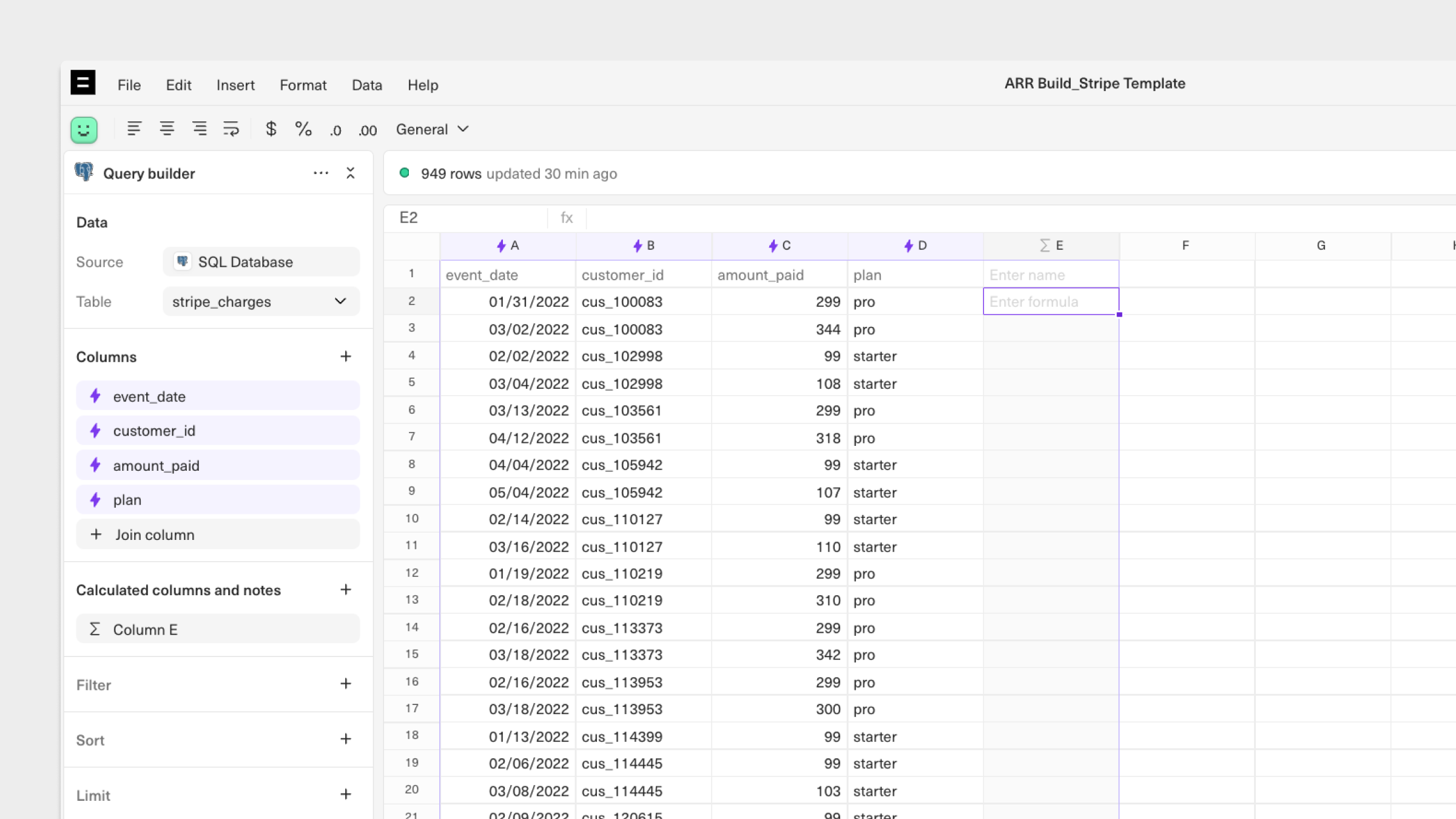
Calculated columns are columns adjacent to queried output that contain a formula. This formula applies to the entire column and automatically expands and contracts as the data returned from a query changes.
Calculated columns are useful for extracting details from your queried data that make summary tables easy to create. For example, using a calculated column to categorize dates into quarters (Q1, Q2, Q3...) or months into numbers (1, 2, 3...) will make it simple to set up a summary table that uses `SUMIFS` formulas.
## Enabling calculated columns
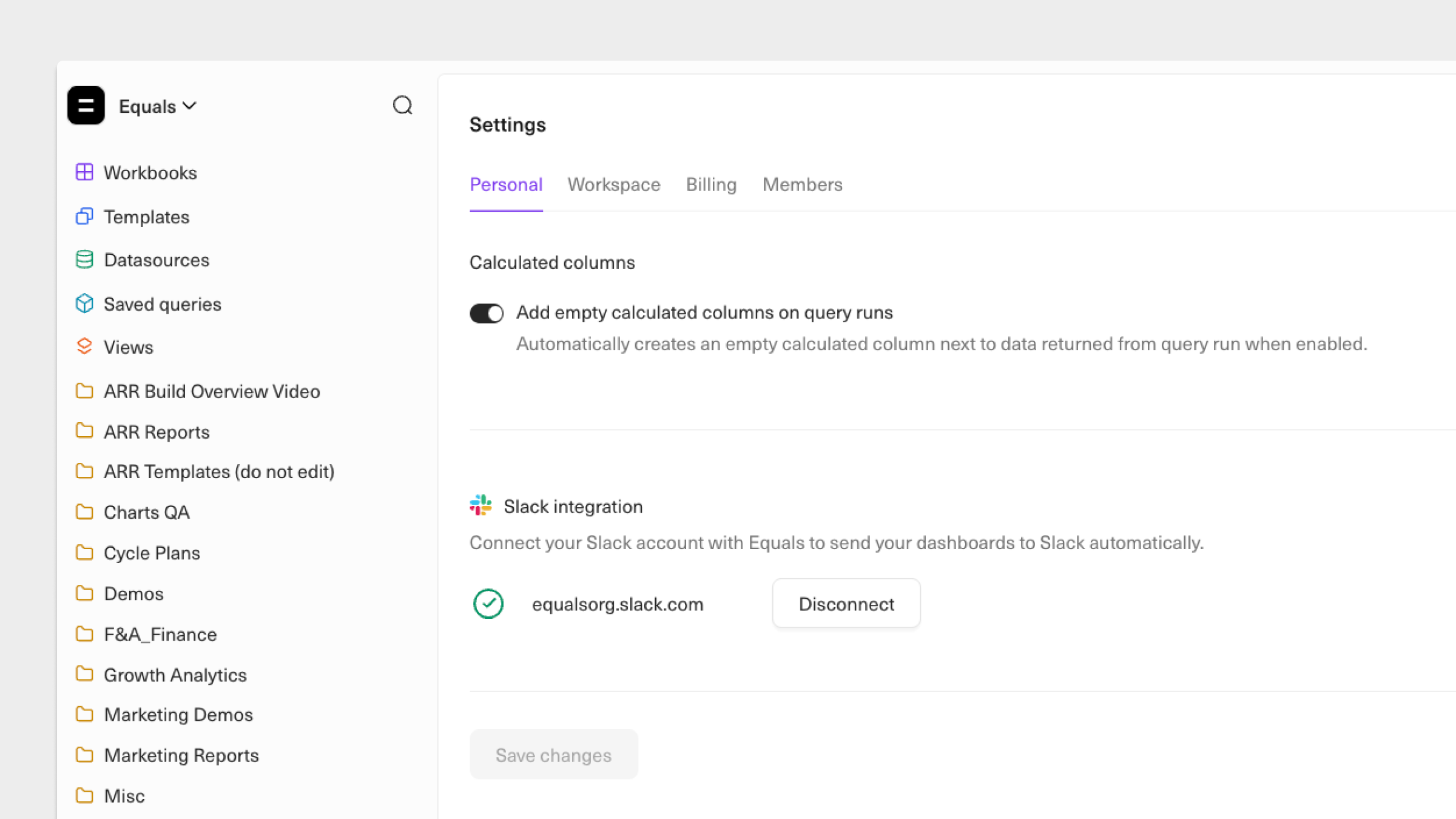
Calculated columns are enabled by default, meaning that a new calculated column as added next to your output data when you run a query.
 To turn off this setting, go to *Settings > Personal*. When toggled off, a calculated column is not added by default, but you can always manually add one as well as notes columns.
 ## Adding calculated columns
To add a calculated column or note column from the query builder, select `+ Add column`.
You can also add calculated columns by right-clicking a column header in your connected sheet and choosing *Add calculated column*. Once added, calculated columns can be reordered directly from the query builder by dragging and dropping.
From there, populate your calculated column by entering a formula into a cell beneath the header value. After hitting `Enter`, the formula will automatically expand to fill the column.
# FAQ
### Can I create multiple calculated columns?
To add another calculated column, it must be immediately adjacent to the last calculated column.
### How can I delete a calculated column?
If you delete the formula in any of the cells of a calculated column, the light green shading will persist but the calculation will be removed. Right clicking on the column header will allow you to delete the calculated column.
***
[Date matching formulas](/docs/date-matching-formulas)
[Auto-expand](/docs/auto-expand)
## Adding calculated columns
To add a calculated column or note column from the query builder, select `+ Add column`.
You can also add calculated columns by right-clicking a column header in your connected sheet and choosing *Add calculated column*. Once added, calculated columns can be reordered directly from the query builder by dragging and dropping.
From there, populate your calculated column by entering a formula into a cell beneath the header value. After hitting `Enter`, the formula will automatically expand to fill the column.
# FAQ
### Can I create multiple calculated columns?
To add another calculated column, it must be immediately adjacent to the last calculated column.
### How can I delete a calculated column?
If you delete the formula in any of the cells of a calculated column, the light green shading will persist but the calculation will be removed. Right clicking on the column header will allow you to delete the calculated column.
***
[Date matching formulas](/docs/date-matching-formulas)
[Auto-expand](/docs/auto-expand)