> ## Documentation Index
> Fetch the complete documentation index at: https://docs.equals.com/llms.txt
> Use this file to discover all available pages before exploring further.
# Dashboard Edit and View modes
> A dashboard can be opened in one of two states:
1. **Edit mode:** Users with the right permissions can create and edit the dashboard and modify its settings
2. **View mode:** People with the right permissions can view the dashboard and apply filters but not edit it
# Edit mode
When users with `Can edit` [permission](https://dash.readme.com/project/equals/v1.0/docs/create-and-edit-dashboards) visit the `Dashboard` tab in a workbook, the dashboard will be in `Edit mode`.
When in `Edit mode` users can:
* [Add, modify, and remove cells, charts, tables, and text](https://docs.equals.com/docs/creating-and-editing-dashboards)
* [Add and modify filters](https://docs.equals.com/docs/dashboard-filters)
* [Change Dashboard settings](https://docs.equals.com/docs/dashboard-settings)
* [Set up and modify scheduled sends](https://docs.equals.com/docs/send-dashboards-to-email-and-slack)
* [Customize the appearance of the dashboard in View mode](https://docs.equals.com/docs/dashboard-edit-and-view-modes#customizing-view-mode)
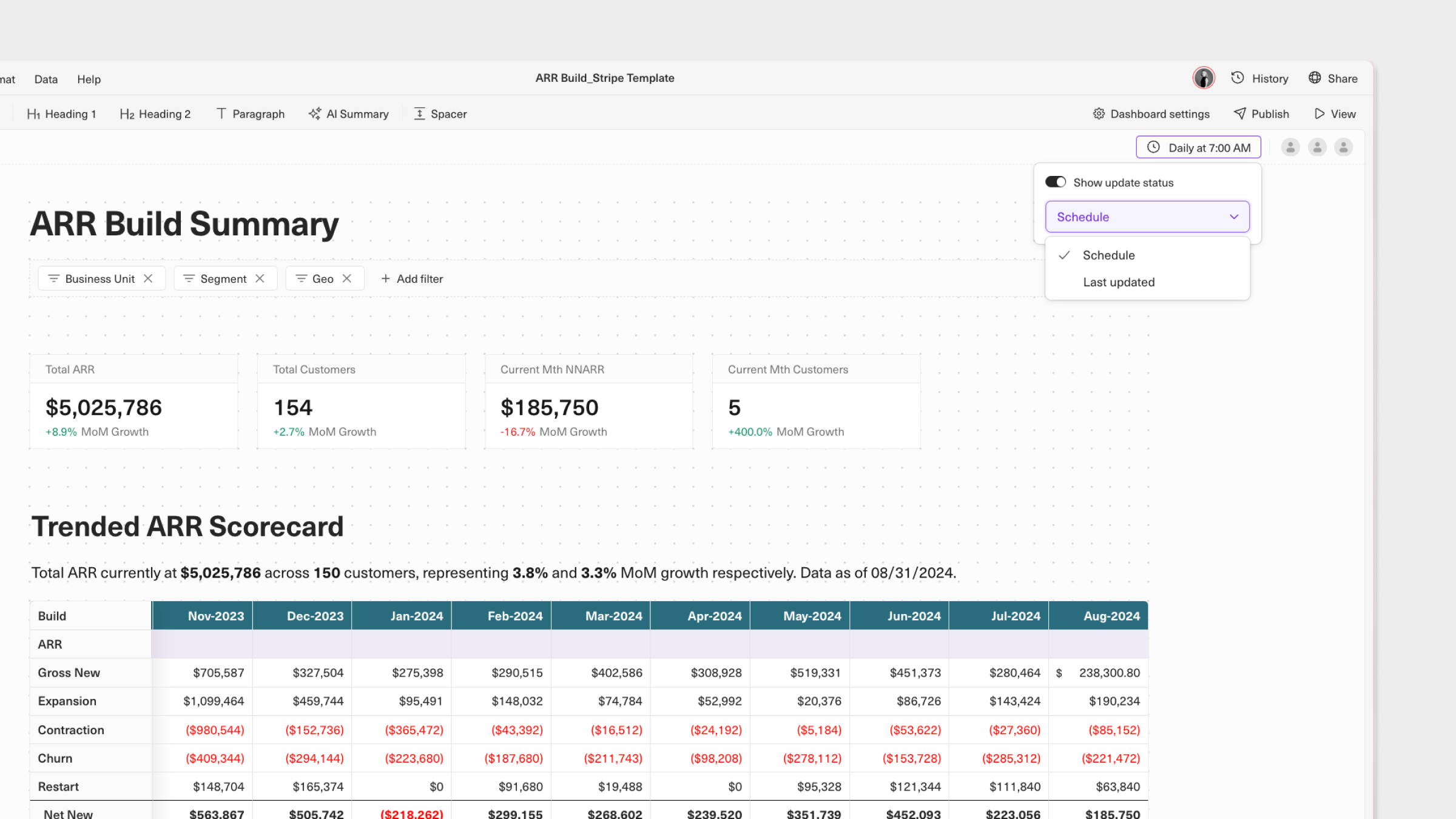 # View mode
Anyone with either `Read only` or `Dashboard only` [permission in a workbook](https://docs.equals.com/docs/manage-dashboard-access-and-permissions#view-and-edit-access) can only open a dashboard in `View mode`. When in `View mode` viewers can:
* [Apply dashboard filters](https://docs.equals.com/docs/dashboard-filters#applying-filters)
* See when the dashboard's contents were last updated or when the least frequent [scheduled query](https://docs.equals.com/docs/query-scheduling) is set to run. What is displayed can be set by anyone with `Can edit` permission when in `Edit mode`.
# View mode
Anyone with either `Read only` or `Dashboard only` [permission in a workbook](https://docs.equals.com/docs/manage-dashboard-access-and-permissions#view-and-edit-access) can only open a dashboard in `View mode`. When in `View mode` viewers can:
* [Apply dashboard filters](https://docs.equals.com/docs/dashboard-filters#applying-filters)
* See when the dashboard's contents were last updated or when the least frequent [scheduled query](https://docs.equals.com/docs/query-scheduling) is set to run. What is displayed can be set by anyone with `Can edit` permission when in `Edit mode`.
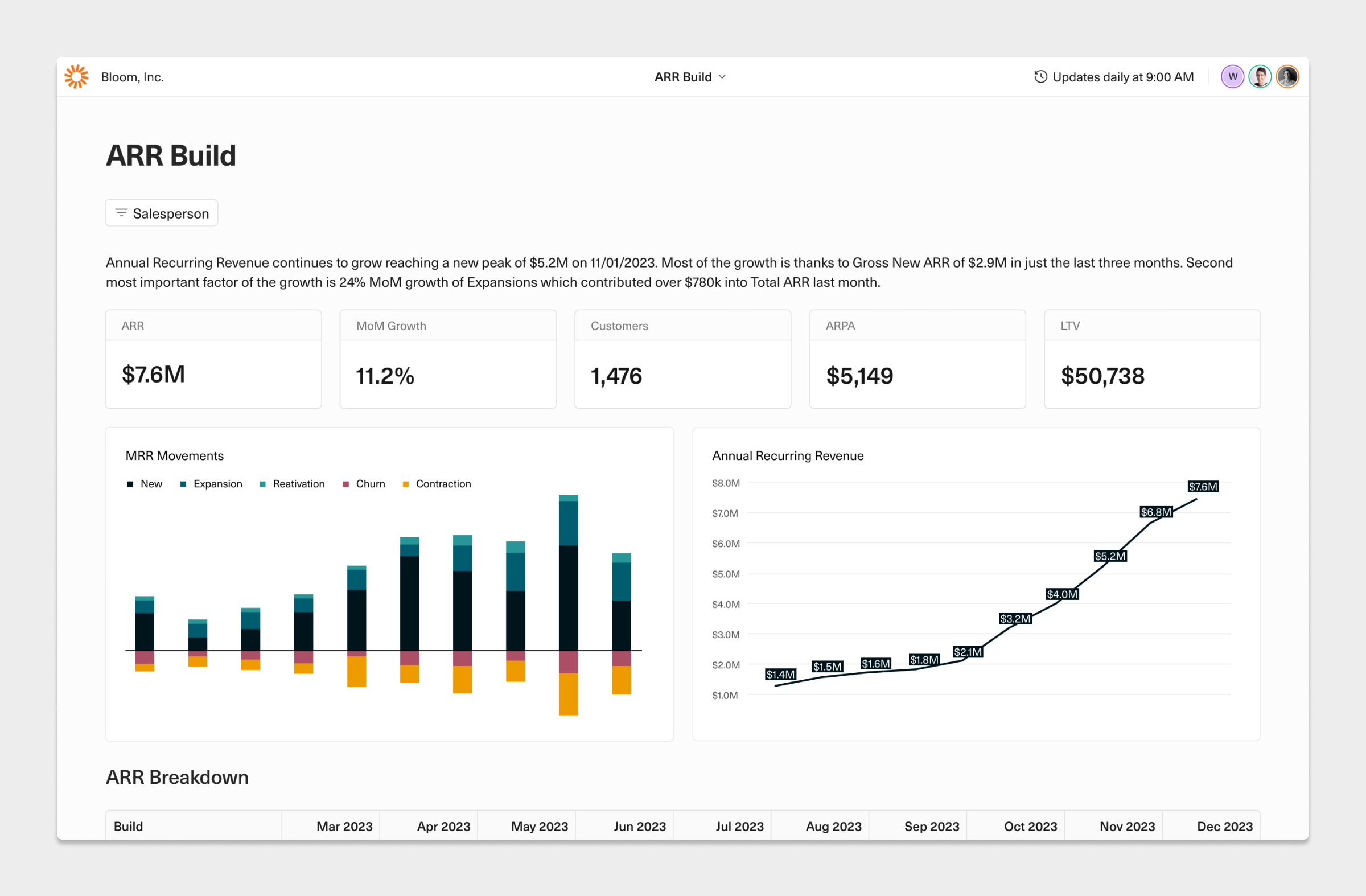 # Customizing View mode
### View mode URL
Users with `Can edit` permission can create a cleaner looking URL for sharing in [Dashboard settings](https://docs.equals.com/docs/dashboard-settings).
In `Edit mode` you can make the following customizations to the appearance of a dashboard when opened in `View mode`.
## Display a custom logo
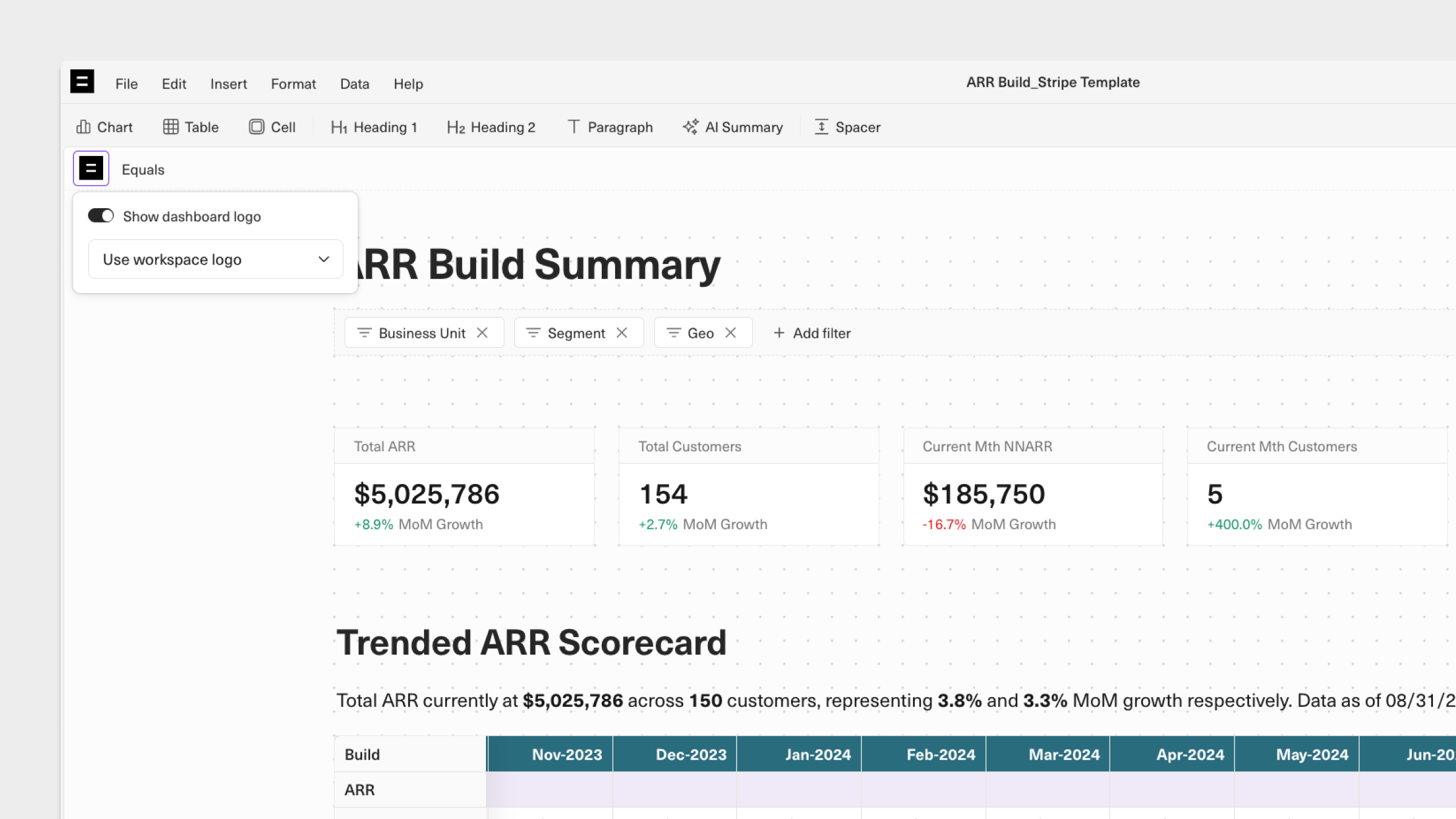
To toggle the display of a logo and select between your workspace's logo or a custom logo, click the logo on the left below the dashboard's toolbar while in `Edit mode`.
# Customizing View mode
### View mode URL
Users with `Can edit` permission can create a cleaner looking URL for sharing in [Dashboard settings](https://docs.equals.com/docs/dashboard-settings).
In `Edit mode` you can make the following customizations to the appearance of a dashboard when opened in `View mode`.
## Display a custom logo
To toggle the display of a logo and select between your workspace's logo or a custom logo, click the logo on the left below the dashboard's toolbar while in `Edit mode`.
 ## Display a custom company name
By default, the name alongside the logo is the name of your Workspace. You can change this by clicking the name to enter edit mode and typing in a new name.
## Display `Last updated` or `Schedule`
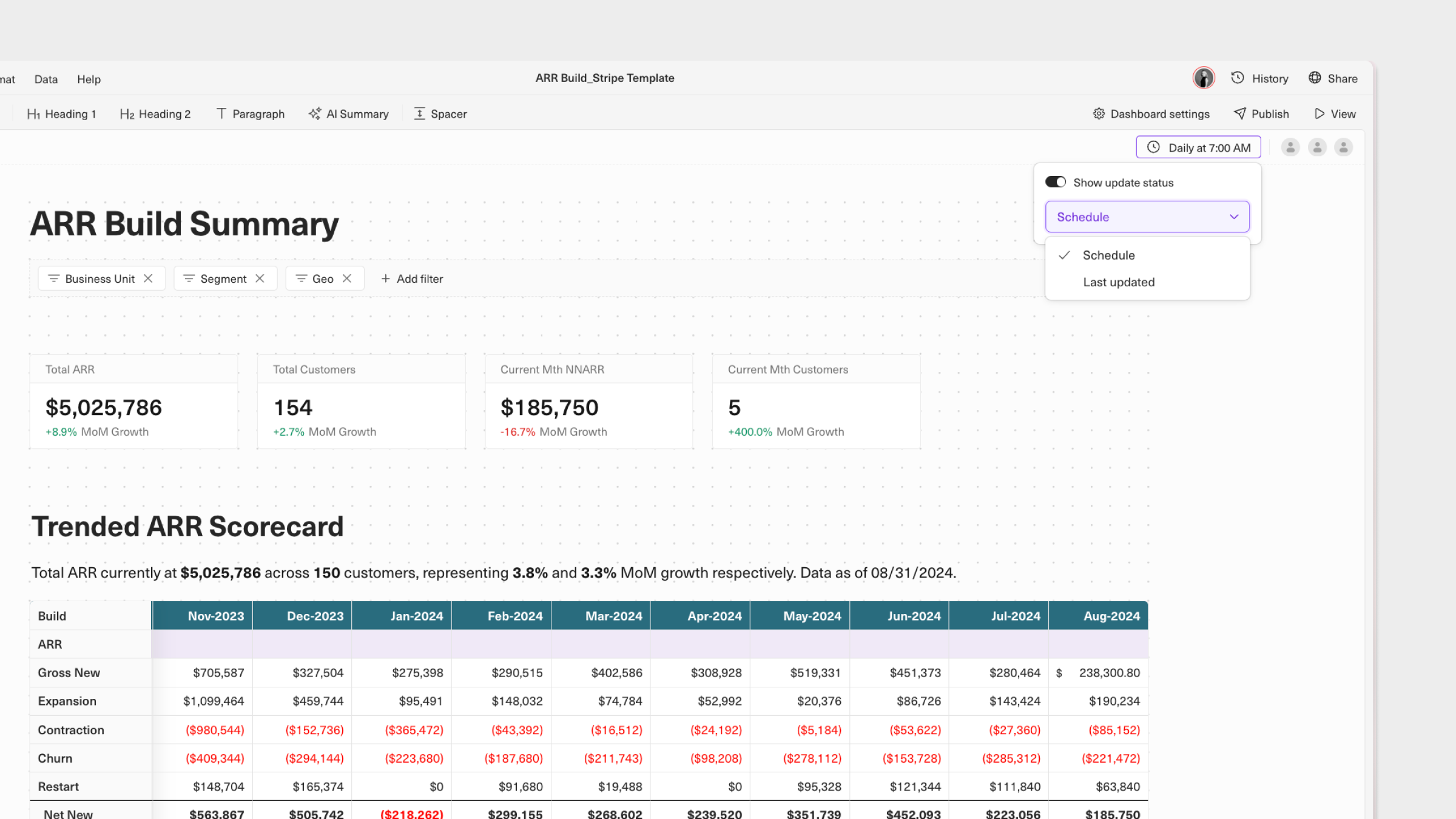
Choose whether viewers see when the dashboard's contents were last updated or when the least frequent [scheduled query](https://docs.equals.com/docs/query-scheduling) is set to run. This option is available if your workbook contains at least 1 scheduled query.
## Display a custom company name
By default, the name alongside the logo is the name of your Workspace. You can change this by clicking the name to enter edit mode and typing in a new name.
## Display `Last updated` or `Schedule`
Choose whether viewers see when the dashboard's contents were last updated or when the least frequent [scheduled query](https://docs.equals.com/docs/query-scheduling) is set to run. This option is available if your workbook contains at least 1 scheduled query.
 ***
What’s Next
* [Create and edit dashboards](/docs/create-and-edit-dashboards)
***
What’s Next
* [Create and edit dashboards](/docs/create-and-edit-dashboards)