> ## Documentation Index
> Fetch the complete documentation index at: https://docs.equals.com/llms.txt
> Use this file to discover all available pages before exploring further.
# Date matching formulas
> Three formulas make date-based comparisons easier and more intuitive. Use , , and to convert any date value into it’s respective week, month, or year.
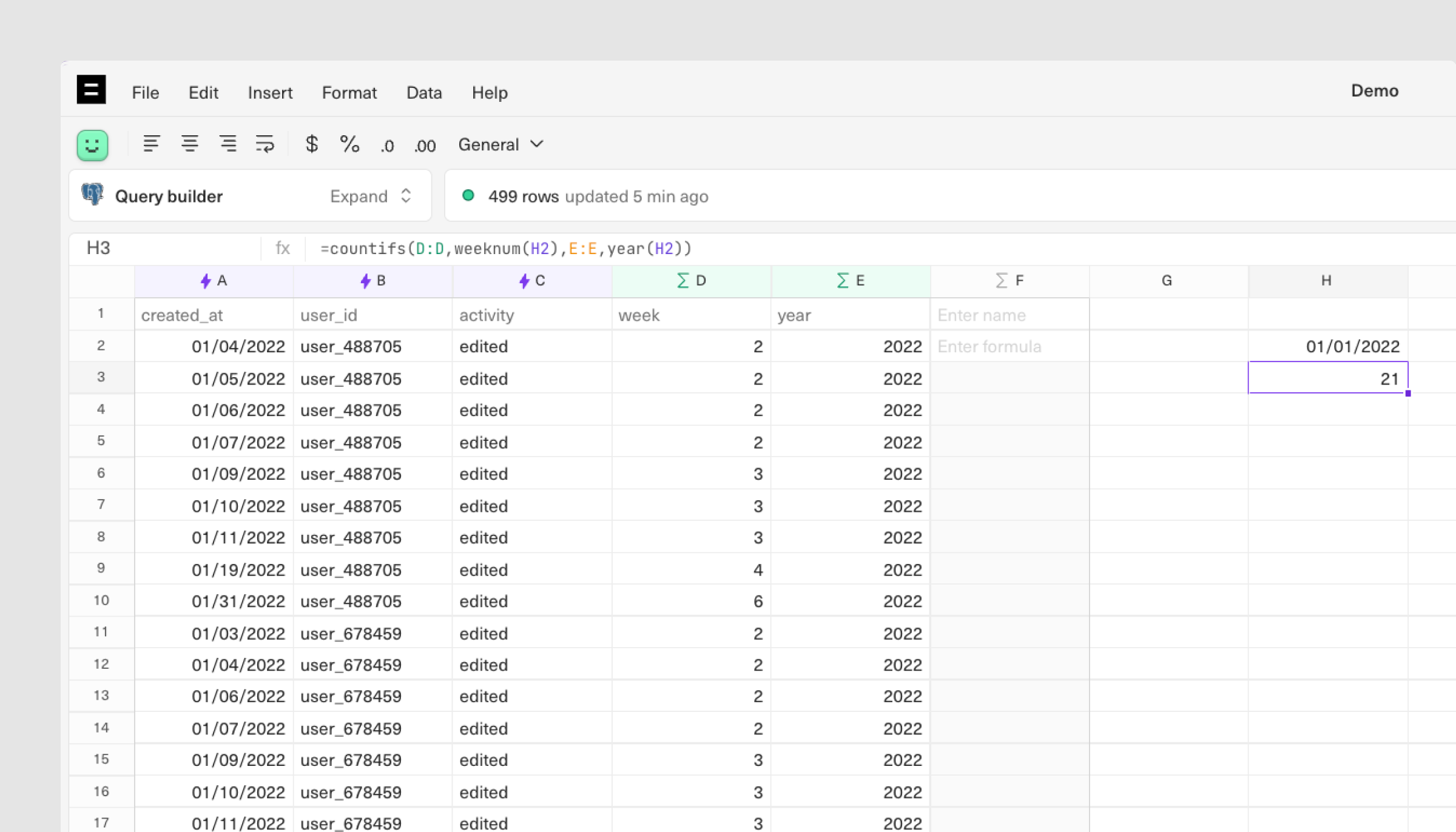
Previously, you'd need to:
* Extract the week number and year from your date field in order to reference it in your formula.
* Now, write your formula to match on both week number and year: `=countifs(D:D,weeknum(H2),E:E,year(H2))`.
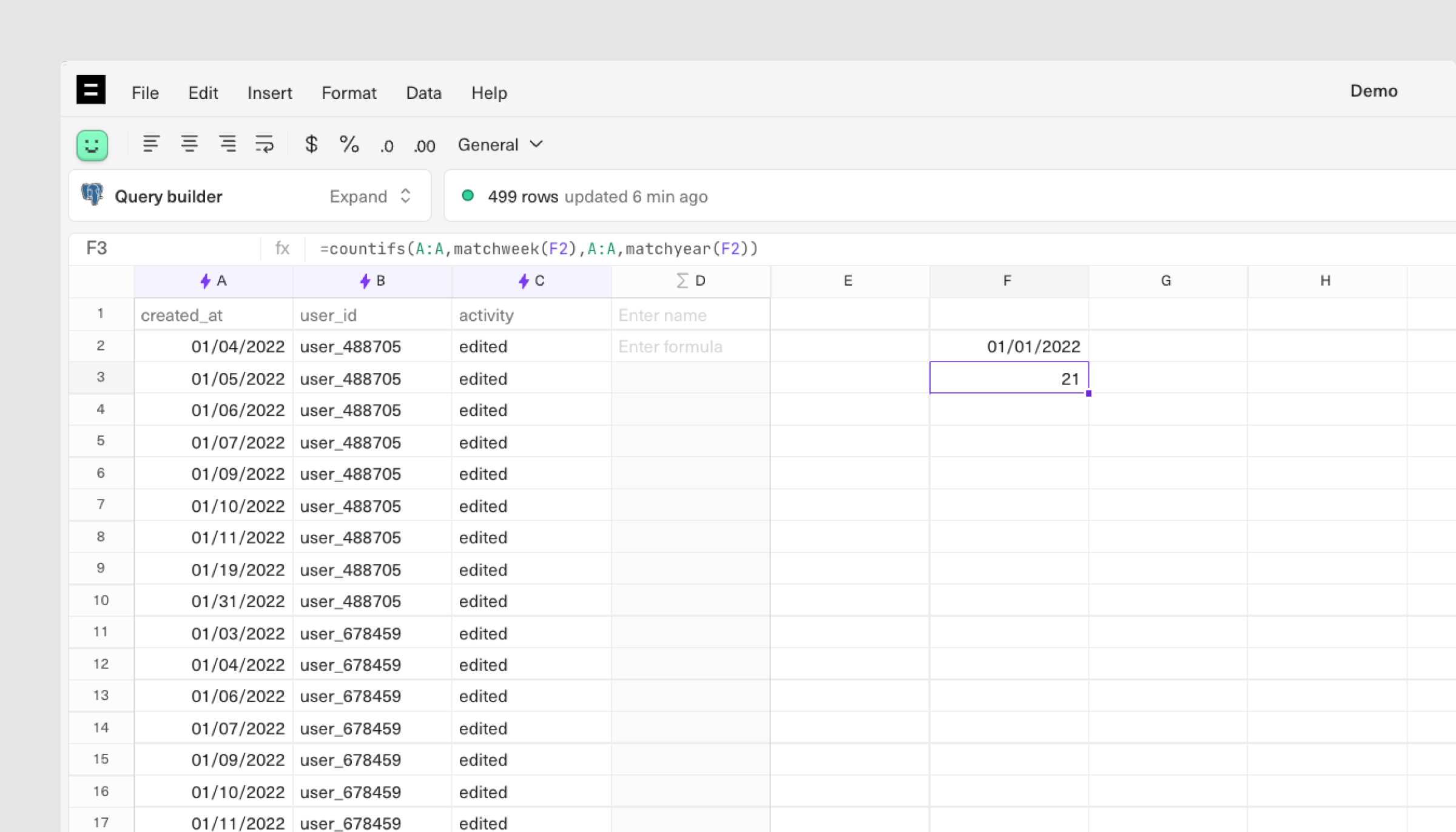
 Now, you can:
* Skip the calculated column and enclose the date value in a MATCHWEEK / MATCHYEAR formula: `=countifs(A:A,matchweek(F2),A:A,matchyear(F2))`.
Now, you can:
* Skip the calculated column and enclose the date value in a MATCHWEEK / MATCHYEAR formula: `=countifs(A:A,matchweek(F2),A:A,matchyear(F2))`.
 ***
[Working with dates](/docs/working-with-dates)
[Calculated columns](/docs/calculated-columns)
***
[Working with dates](/docs/working-with-dates)
[Calculated columns](/docs/calculated-columns)