> ## Documentation Index
> Fetch the complete documentation index at: https://docs.equals.com/llms.txt
> Use this file to discover all available pages before exploring further.
# Netsuite
> Connect your NetSuite instance to Equals
To connect NetSuite to Equals you will need to take several sequential steps which include:
* Enabling API connections in NetSuite
* Identifying your Account ID
* Creating a Client ID and Client Secret, and
* Creating a Role and User to obtain your Token ID and Token Secret.
Once you've connected successfully using this information, you'll be able to query all data from NetSuite. You can also create Reports to bring your custom NetSuite reports into Equals.
Note: NetSuite is an enterprise connection so you'll be prompted to schedule a setup call with our team before getting connected.
***
# Enabling API connections in NetSuite
To begin, log in to NetSuite and select *Setup* from the toolbar, then *Company* > *Enabled Features*.
Here, you'll click on the *SuiteCloud* tab. Under *SuiteTalk (Web Services)*, enable *SOAP Web Services* and *REST Web Services*. Under *Manage Authentication*, enable *Token-based authentication*. Your setup should look like the image below:
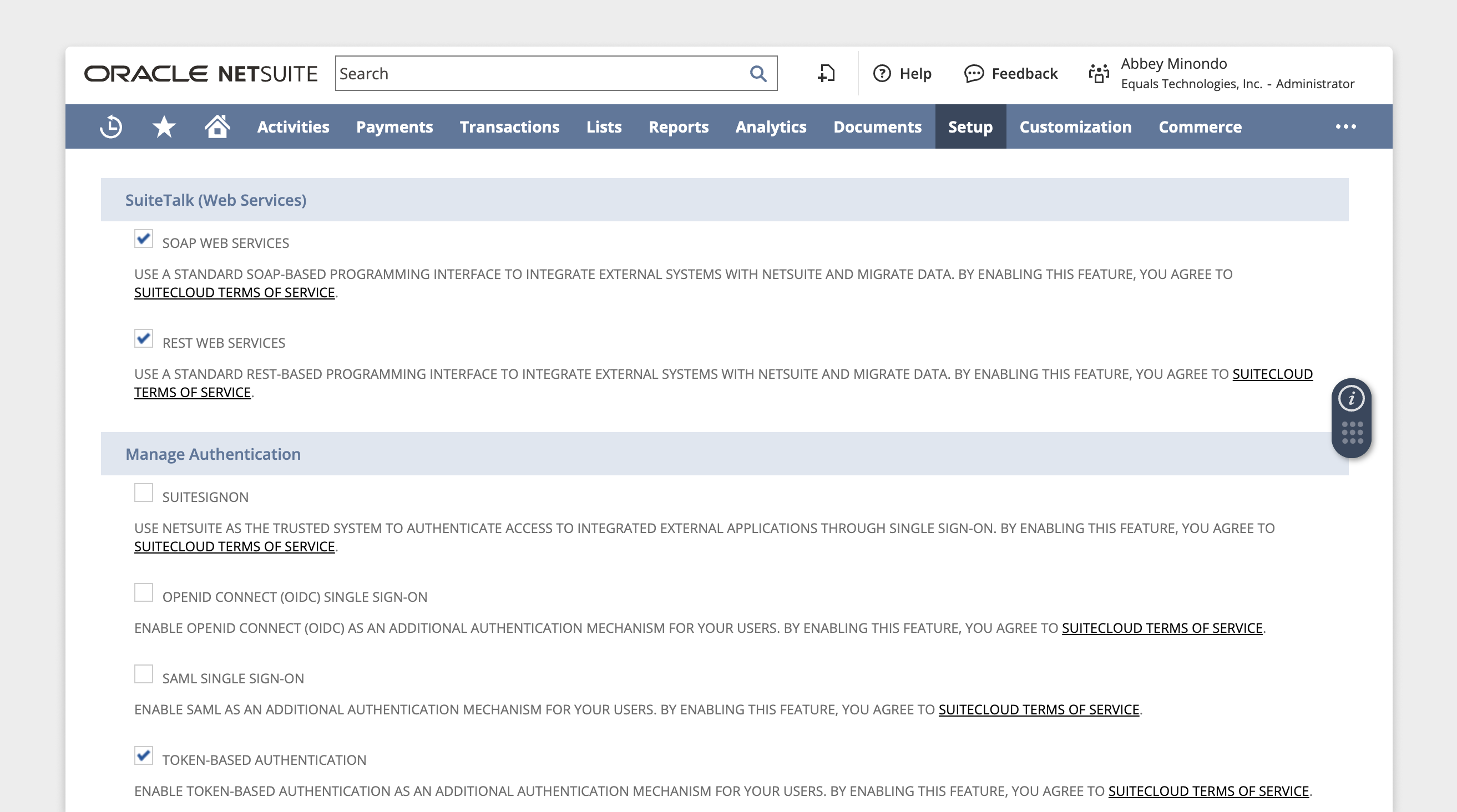 Once you've done this, scroll to the bottom of the page and select Save.
***
# Finding your Account ID
Your Account ID can be found in your NetSuite URL, which should look something like this: [https://1234567.app.netsuite.com/app](https://1234567.app.netsuite.com/app). In this example, your Account ID is the first string (`1234567`).
You can also find your Account ID by navigating to *Setup > Company > Company Information*. Here, you'll see your Account ID listed along with other company details.
***
# Obtaining your NetSuite Client ID and Client Secret key
Once you have logged into your NetSuite account, navigate to *Setup > Integration > Manage Integrations > New.*
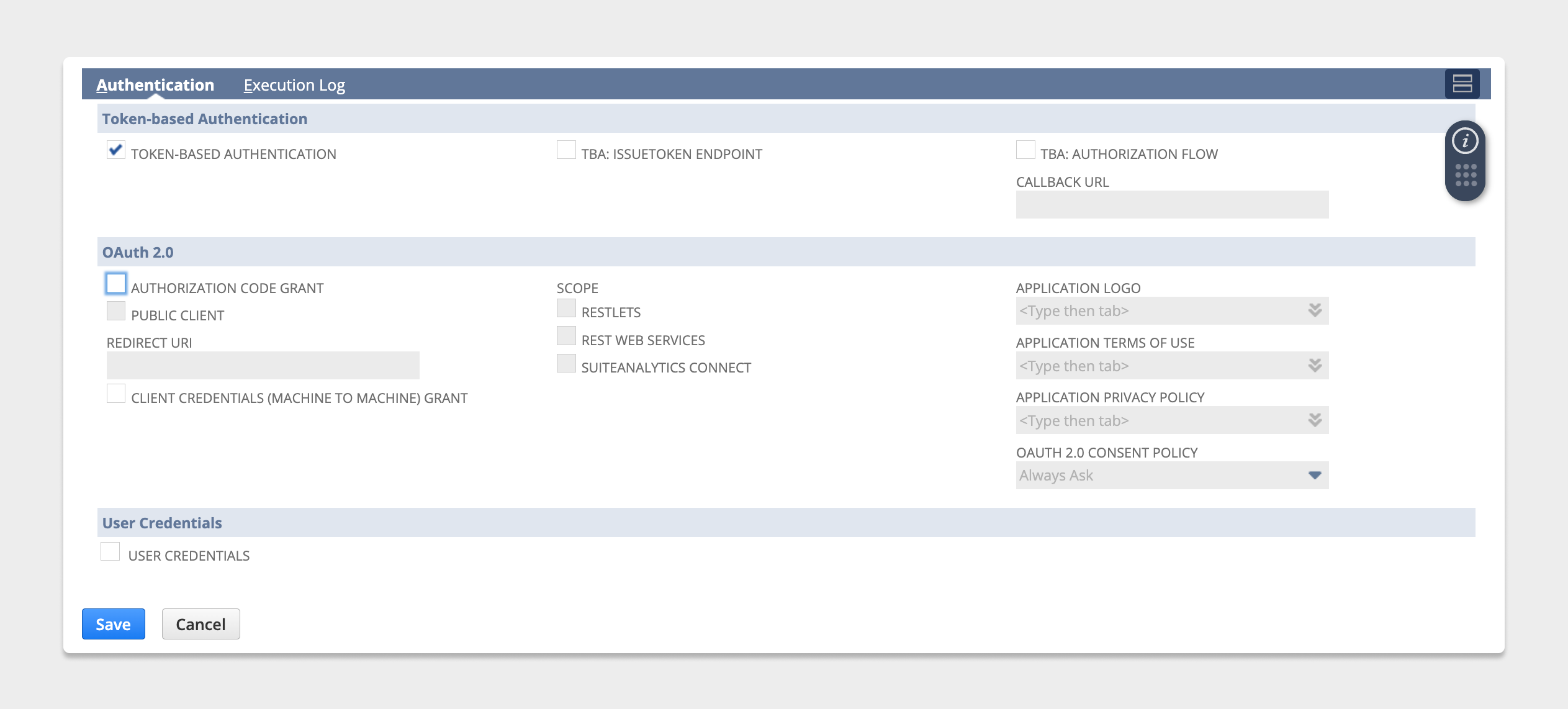
This will bring you to a new screen where you can name your integration. Under the *Authentication* header, check *Token-based authentication* and uncheck *TBA: Authorization Flow*. Under the OAuth 2.0 header, uncheck *Authorization Code Grant.* Your final configuration should look like this:
Once you've done this, scroll to the bottom of the page and select Save.
***
# Finding your Account ID
Your Account ID can be found in your NetSuite URL, which should look something like this: [https://1234567.app.netsuite.com/app](https://1234567.app.netsuite.com/app). In this example, your Account ID is the first string (`1234567`).
You can also find your Account ID by navigating to *Setup > Company > Company Information*. Here, you'll see your Account ID listed along with other company details.
***
# Obtaining your NetSuite Client ID and Client Secret key
Once you have logged into your NetSuite account, navigate to *Setup > Integration > Manage Integrations > New.*
This will bring you to a new screen where you can name your integration. Under the *Authentication* header, check *Token-based authentication* and uncheck *TBA: Authorization Flow*. Under the OAuth 2.0 header, uncheck *Authorization Code Grant.* Your final configuration should look like this:
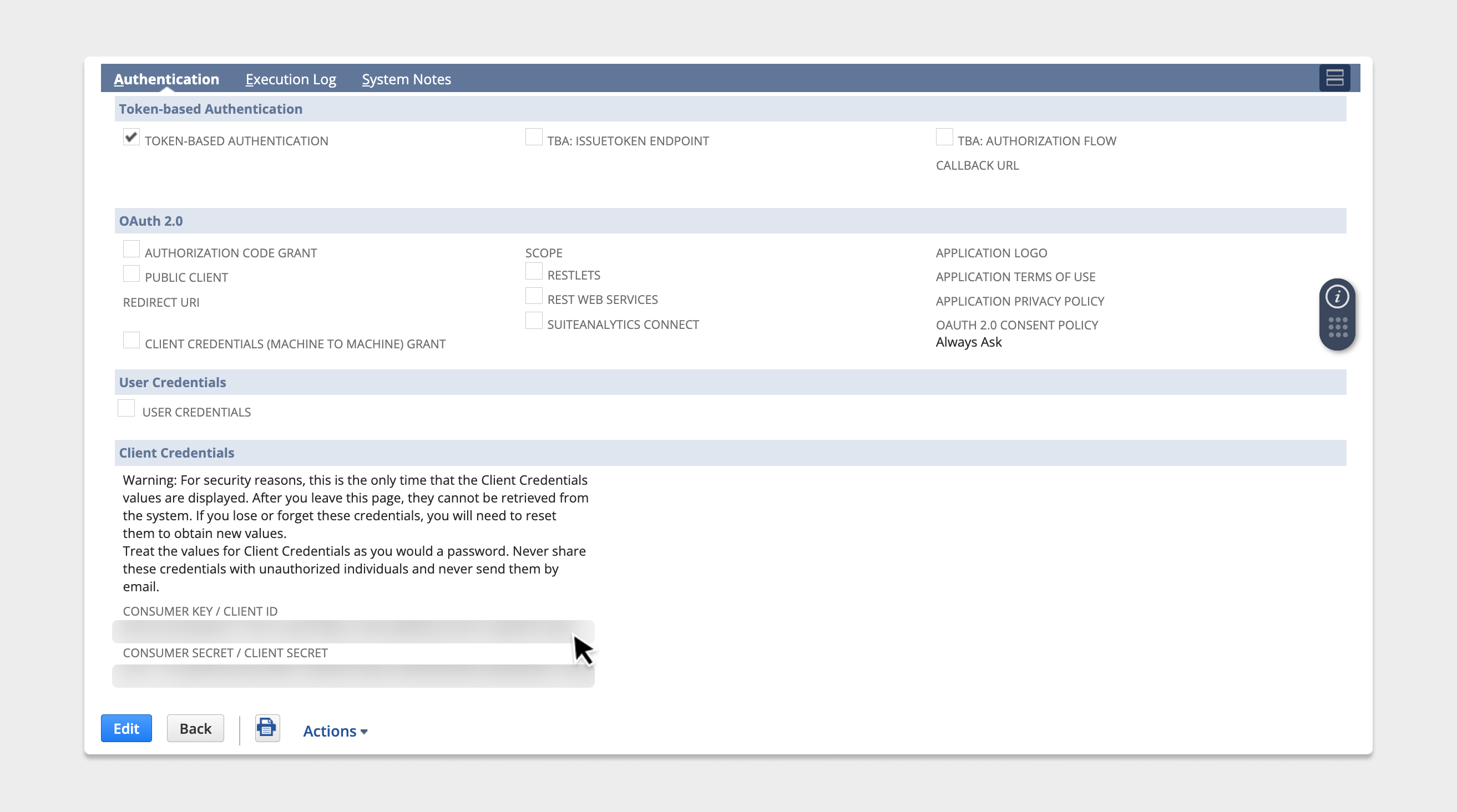
 Click *Save.* A Client ID key and Client Secret key will populate below (note: this will only be visible once, so be sure to copy this to enter into the Equals datasource setup page).
 ***
# Creating a Role
Navigate to *Setup -> Users/Roles -> Manage Roles*. Next to your user's role listed, click *Customize.* This will create a copy of your role, and you'll want to give this role a name (ex: `Equals Datasource`). Ensure that you add the following permissions necessary for API access:
* Log in using Access Tokens
* REST Web Services
* SOAP Web Services.
***
# Creating a User
Navigate to *Lists > Employees > Employees > New*. For the employee name, you'll want to use `Equals Datasource` or something similarly recognizable.
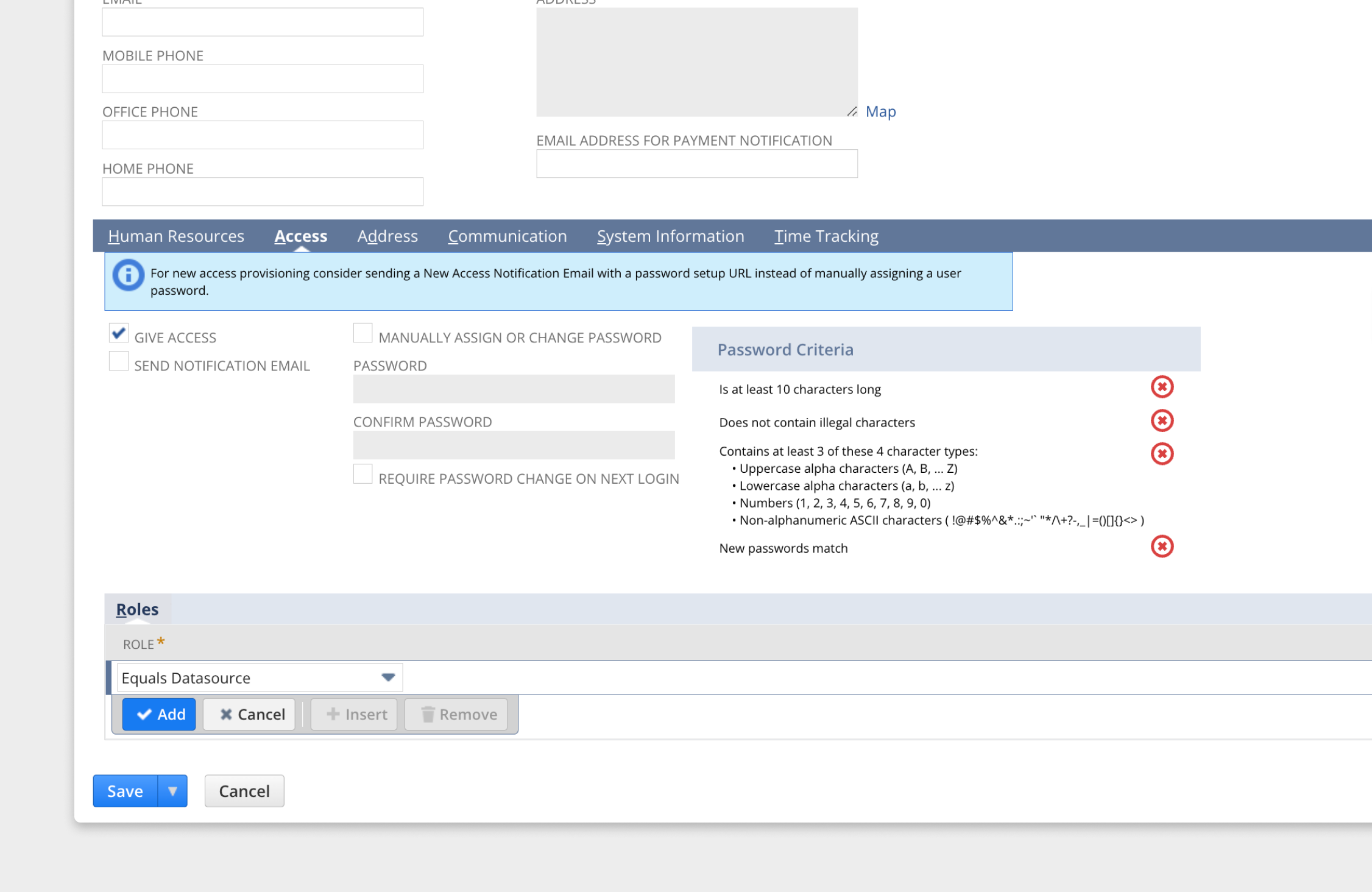
Finally, under the *Access* section, select *Give access*. Still under *Access*, in the *Roles* section, add the role created above. Your setup should look like this:
***
# Creating a Role
Navigate to *Setup -> Users/Roles -> Manage Roles*. Next to your user's role listed, click *Customize.* This will create a copy of your role, and you'll want to give this role a name (ex: `Equals Datasource`). Ensure that you add the following permissions necessary for API access:
* Log in using Access Tokens
* REST Web Services
* SOAP Web Services.
***
# Creating a User
Navigate to *Lists > Employees > Employees > New*. For the employee name, you'll want to use `Equals Datasource` or something similarly recognizable.
Finally, under the *Access* section, select *Give access*. Still under *Access*, in the *Roles* section, add the role created above. Your setup should look like this:
 Then select *Save.*
***
# Creating a Token ID and Token Secret
Navigate to *Setup > Users/Roles > Access Tokens > New*. For *Application Name* select the Integration that was created above. For *User*, select the User that was created above. For *Role*, select the Role above that was assigned to the user. Give the token a name (ie. `Equals Datasource Access Token`).
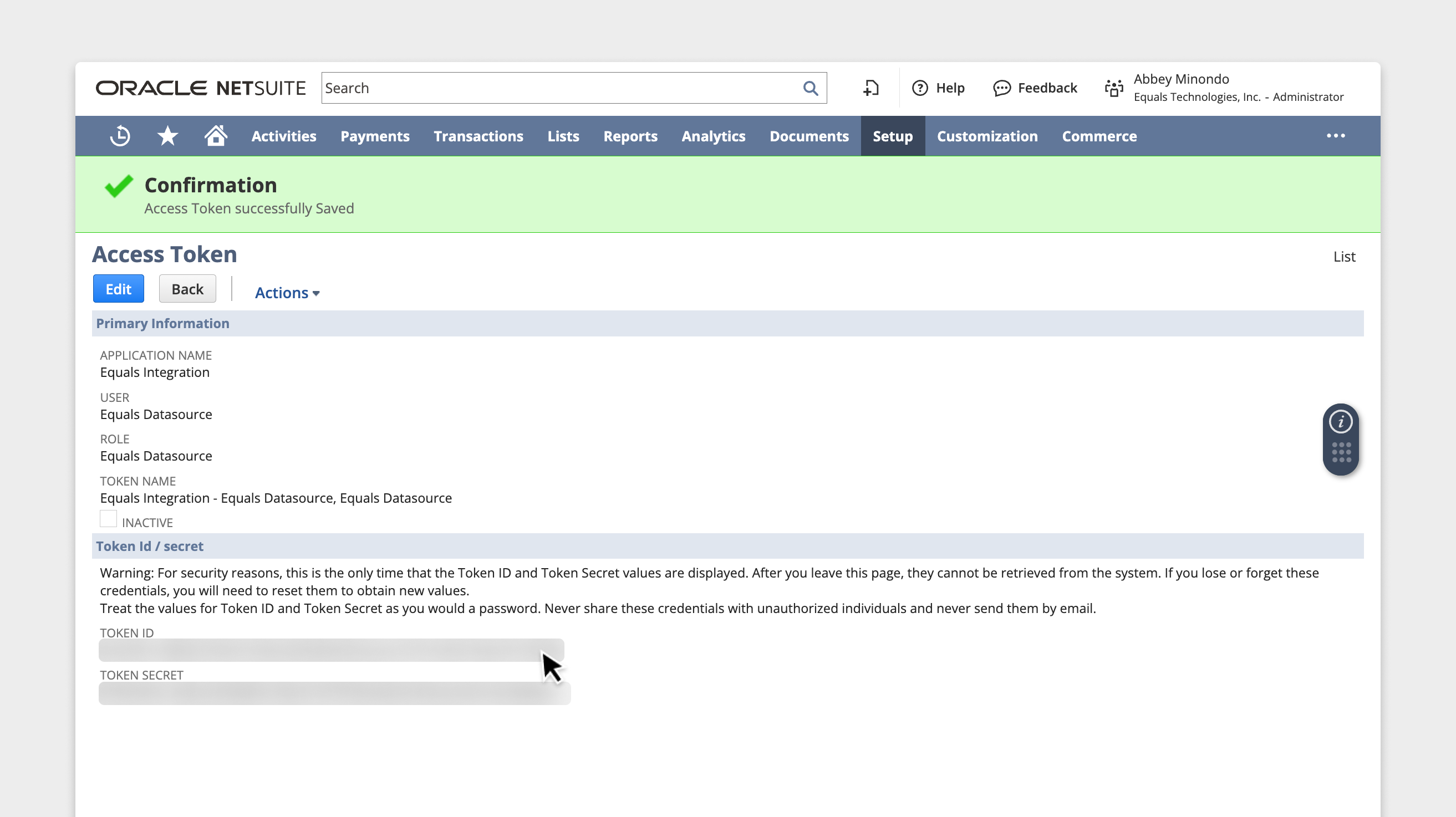
Once you click *Save*, you'll see the tokens revealed below. Record the **`Token ID`** and **`Token Secret`** (they won’t be shown again and these are the last details you'll need to enter into Equals).
Then select *Save.*
***
# Creating a Token ID and Token Secret
Navigate to *Setup > Users/Roles > Access Tokens > New*. For *Application Name* select the Integration that was created above. For *User*, select the User that was created above. For *Role*, select the Role above that was assigned to the user. Give the token a name (ie. `Equals Datasource Access Token`).
Once you click *Save*, you'll see the tokens revealed below. Record the **`Token ID`** and **`Token Secret`** (they won’t be shown again and these are the last details you'll need to enter into Equals).
 Now you have all the data you need to enter into Equals and can click *Save and Test* on the Equals datasource page. This will reveal a new section titled *Synced reports*. Clicking on *New* here will allow you to set up reports such as your Balance Sheet, General Ledger, etc.
# Setting up Reports
After you've successfully connected to NetSuite, click on *New* next to the *Reports* listing. This will walk you through the creation of a *Saved Search* in NetSuite that will set up a process by which Equals ingests CSV files sent on a scheduled cadence by NetSuite, so that you receive this data in your spreadsheet seamlessly.
***
[Google Sheets](/docs/google-sheets)
[Plaid](/docs/plaid)
Now you have all the data you need to enter into Equals and can click *Save and Test* on the Equals datasource page. This will reveal a new section titled *Synced reports*. Clicking on *New* here will allow you to set up reports such as your Balance Sheet, General Ledger, etc.
# Setting up Reports
After you've successfully connected to NetSuite, click on *New* next to the *Reports* listing. This will walk you through the creation of a *Saved Search* in NetSuite that will set up a process by which Equals ingests CSV files sent on a scheduled cadence by NetSuite, so that you receive this data in your spreadsheet seamlessly.
***
[Google Sheets](/docs/google-sheets)
[Plaid](/docs/plaid)