> ## Documentation Index
> Fetch the complete documentation index at: https://docs.equals.com/llms.txt
> Use this file to discover all available pages before exploring further.
# Preparing data for analysis
> Correctly pull and structure raw data to build robust analyses that scale.
`Data tabs` are the foundation of your analysis. They’re where you house and prepare your data. Here, we'll walk through how to structure your queried data in a tabular format to ensure you can build a scalable analysis.
Here's Bobby with a quick walkthrough of what you can expect to learn.
[Watch on YouTube](https://www.youtube.com/watch?v=82zzEYygV1U)
# Setting up a Data tab
When setting up a query (i.e., a data pull), the best practice is to condense like attributes into a singular column. For instance, a single column denotes the location and another transaction amount. Also, be sure to aggregate data at its minimum level of granularity. For example, group by day, month, or year.
Let’s walk through an example: Imagine we want to set up a `Data tab` to power a revenue-by-country analysis. The ***WRONG*** way would be to set one up like the example below, where revenue for each country is broken out into multiple columns.
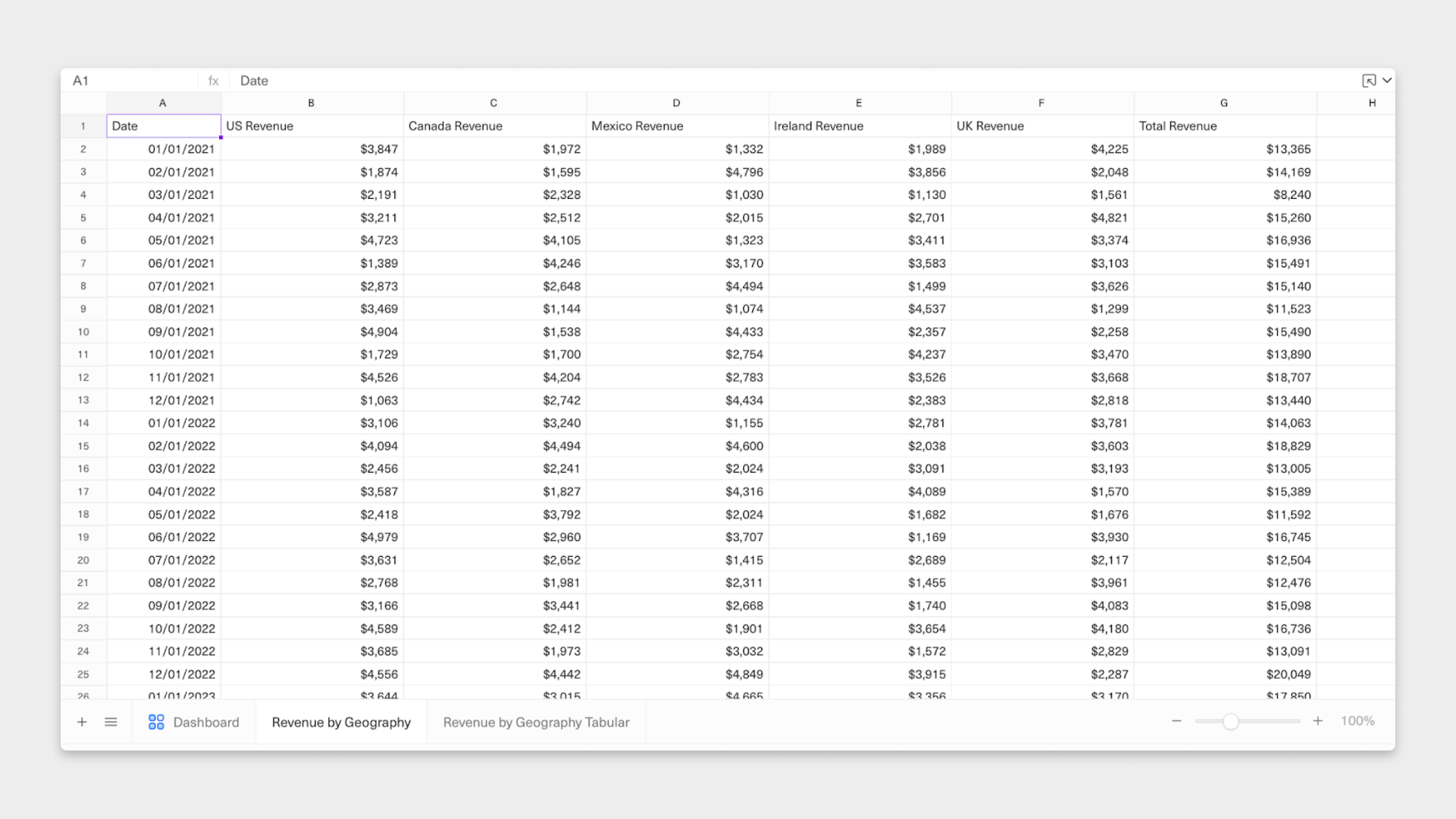 Why is this wrong? It makes maintaining and updating your analysis much more difficult. When you go to build your `Analysis tab`, you'll have to change reference columns for *every* country. You won't be able to reuse formulas (we’ll walk you through this later), creating redundancy and more work for you.
Similarly, if we wanted to add a new country, say Australia or Japan, we’d have to insert a new column and move our `Total Revenue` (column G above) over. Consequently, we must update the `Data tab` and rework any `Analysis tabs` to reference the new columns correctly.
So, what’s a better approach? Collapse all countries into one single column. Here’s the ***CORRECT*** way to set up this `Data tab`.
Why is this wrong? It makes maintaining and updating your analysis much more difficult. When you go to build your `Analysis tab`, you'll have to change reference columns for *every* country. You won't be able to reuse formulas (we’ll walk you through this later), creating redundancy and more work for you.
Similarly, if we wanted to add a new country, say Australia or Japan, we’d have to insert a new column and move our `Total Revenue` (column G above) over. Consequently, we must update the `Data tab` and rework any `Analysis tabs` to reference the new columns correctly.
So, what’s a better approach? Collapse all countries into one single column. Here’s the ***CORRECT*** way to set up this `Data tab`.
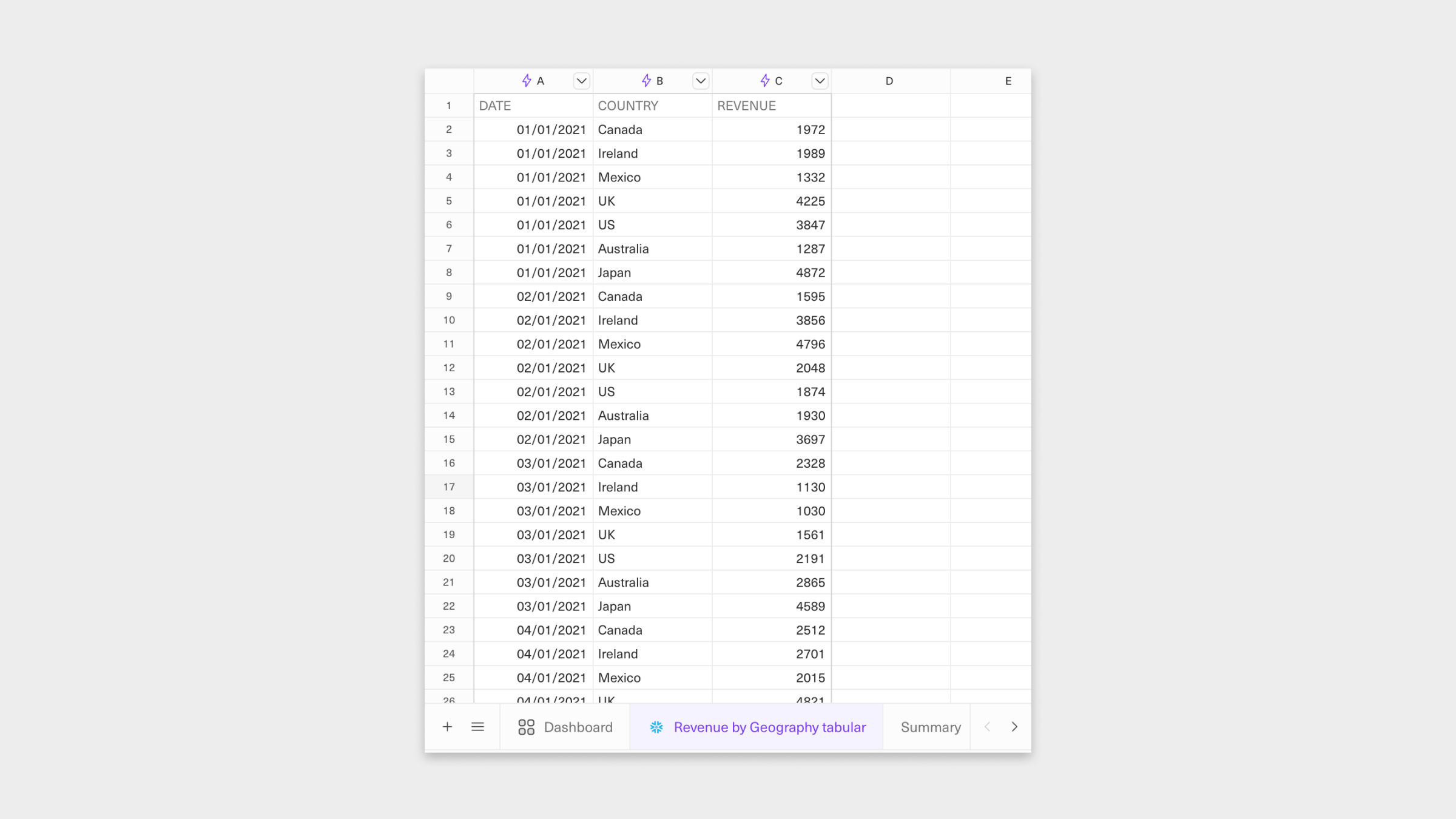 In this case, all countries are now contained in a single column. There are many more rows, but that’s OK because, as we learned earlier, expanding by adding rows is more scaleable. Additionally, spreadsheets are designed to perform well doing columnar calculations (we’ll show you how later in this guide). More importantly, on the `Analysis tab`, we only have to reference column C (`Revenue`) vs. every individual country column for any revenue calculations. And if we want to add other countries down the line, the structure of the `Data tab` doesn’t need to change.
### Query datasources in your spreadsheet
In Equals, connected sheets allow you to [query datasources](https://equals.com/explorer/) directly from your workbook, making it easy to build analyses with live data.
# Infinity Sheets
Infinity sheets are only supported when connected to datasources stored in the **Equals data warehouse.**
### Converting to Equals Infinity
By default, Equals workbooks have a 5 million cell limit. If exceeded, workbook performance may begin to slow down. If you need to work with data beyond the above limits, you can use Equals Infinity.
Equals Infinity allows you to query and analyze significantly larger datasets without row or cell limits. However, it does come with some limitations compared to standard sheets, including *no support for calculated or notes columns, and the inability to build pivot tables or charts directly on Infinity data*.
To switch to an infinity sheet, open your Query Builder / SQL Editor window, then select the down arrow next to "Run Query." A pop-up window will appear saying "Convert to infinity and run." Clicking that button will swap your sheet to an Infinity sheet.
# Enriching and expanding your Data tab
The other benefit of this tabular format is that the data is now structured, so expanding our analysis is simple and scalable. For example, we know that we need to analyze revenue by `Country`, but we might also need to be prepared to ask questions about revenue based on who owns it (i.e., a specific `VP of Sales`) and perhaps also based on the `Region` a given country rolls up to.
This is where `Input tabs` become useful. Below is an example of one that summarizes `Country Details`. While it may seem overly simple, it’s worth maintaining separately–you’ll see why later.
In this case, all countries are now contained in a single column. There are many more rows, but that’s OK because, as we learned earlier, expanding by adding rows is more scaleable. Additionally, spreadsheets are designed to perform well doing columnar calculations (we’ll show you how later in this guide). More importantly, on the `Analysis tab`, we only have to reference column C (`Revenue`) vs. every individual country column for any revenue calculations. And if we want to add other countries down the line, the structure of the `Data tab` doesn’t need to change.
### Query datasources in your spreadsheet
In Equals, connected sheets allow you to [query datasources](https://equals.com/explorer/) directly from your workbook, making it easy to build analyses with live data.
# Infinity Sheets
Infinity sheets are only supported when connected to datasources stored in the **Equals data warehouse.**
### Converting to Equals Infinity
By default, Equals workbooks have a 5 million cell limit. If exceeded, workbook performance may begin to slow down. If you need to work with data beyond the above limits, you can use Equals Infinity.
Equals Infinity allows you to query and analyze significantly larger datasets without row or cell limits. However, it does come with some limitations compared to standard sheets, including *no support for calculated or notes columns, and the inability to build pivot tables or charts directly on Infinity data*.
To switch to an infinity sheet, open your Query Builder / SQL Editor window, then select the down arrow next to "Run Query." A pop-up window will appear saying "Convert to infinity and run." Clicking that button will swap your sheet to an Infinity sheet.
# Enriching and expanding your Data tab
The other benefit of this tabular format is that the data is now structured, so expanding our analysis is simple and scalable. For example, we know that we need to analyze revenue by `Country`, but we might also need to be prepared to ask questions about revenue based on who owns it (i.e., a specific `VP of Sales`) and perhaps also based on the `Region` a given country rolls up to.
This is where `Input tabs` become useful. Below is an example of one that summarizes `Country Details`. While it may seem overly simple, it’s worth maintaining separately–you’ll see why later.
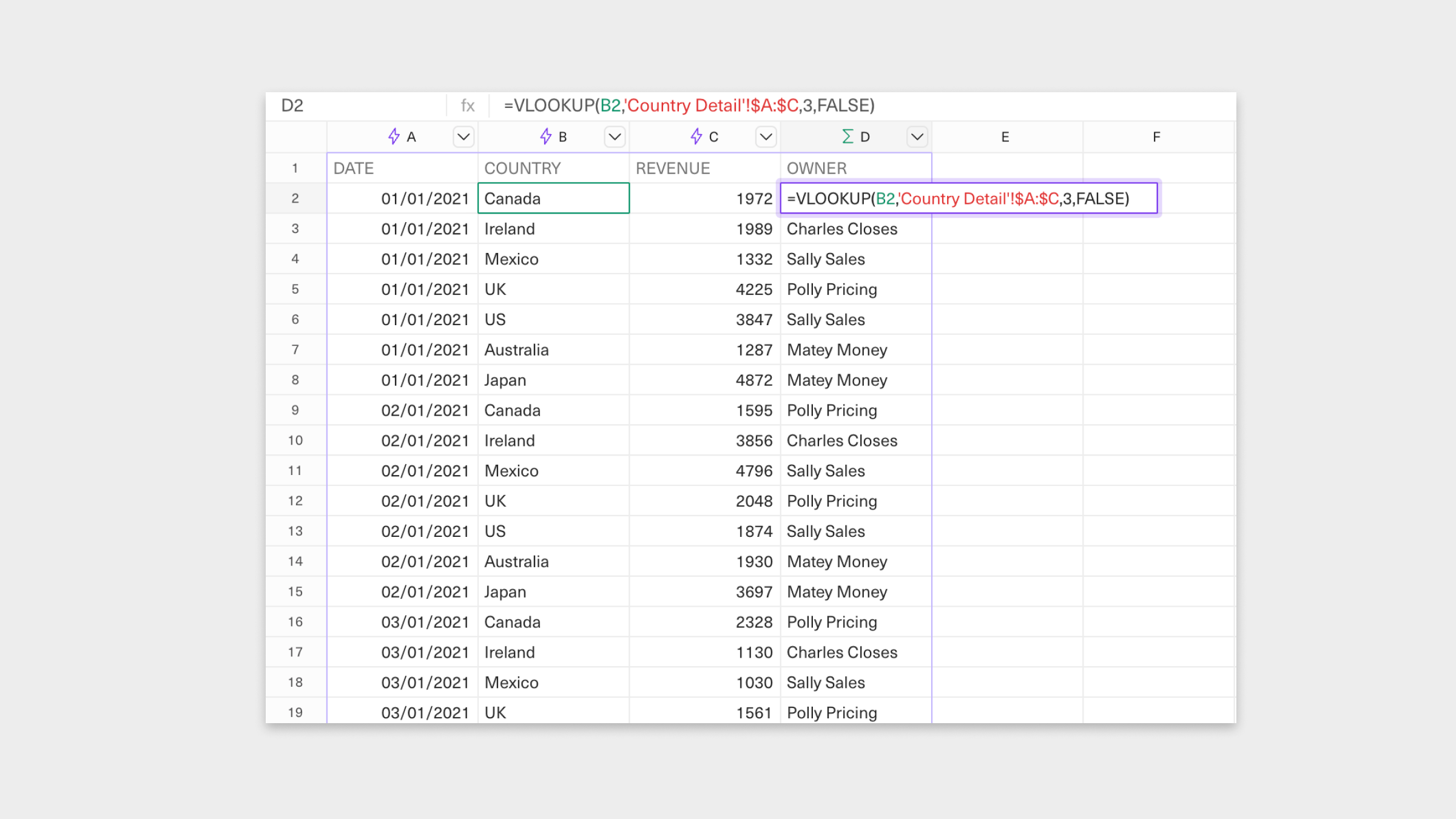
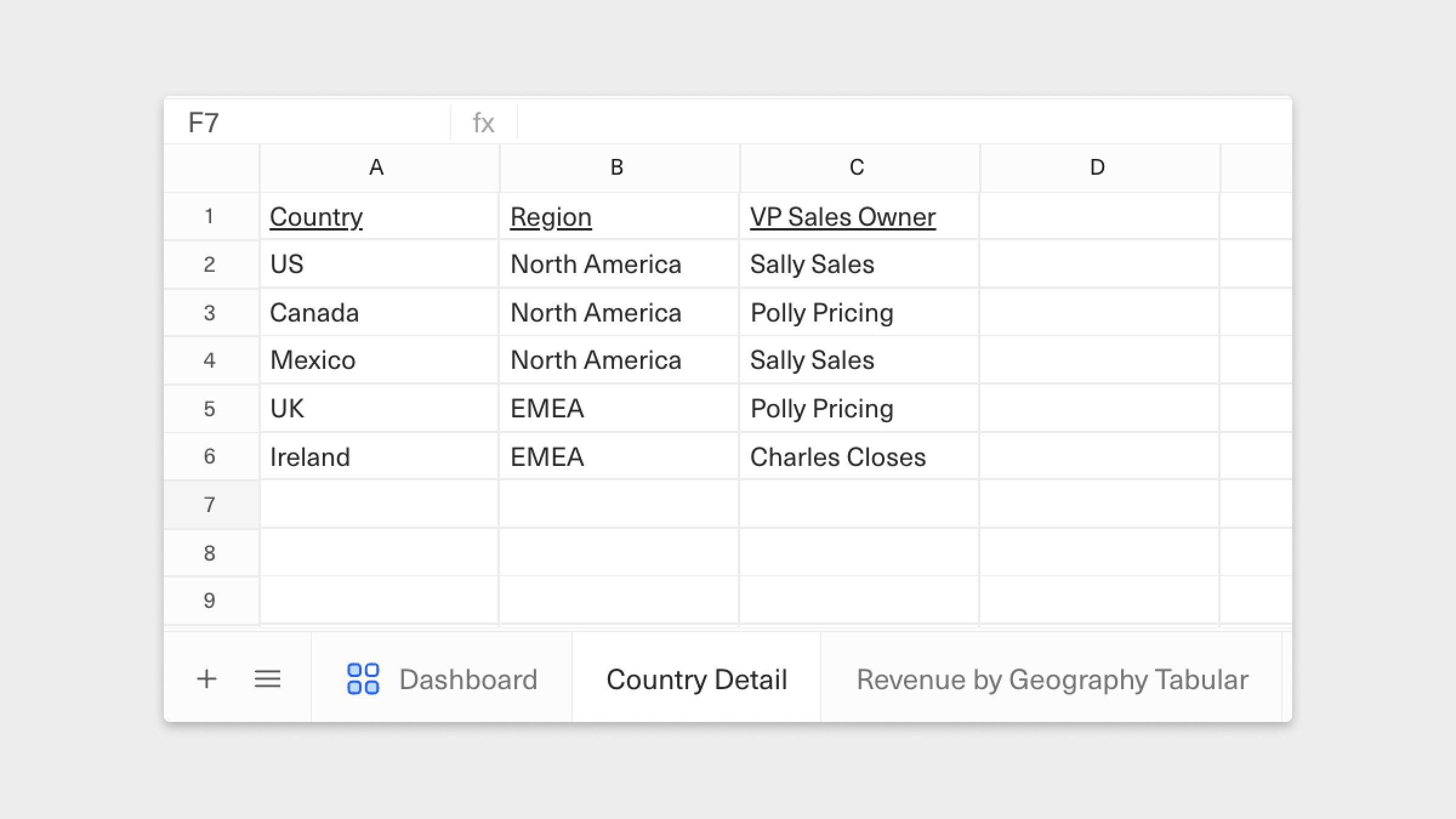 We’ll use this as a reference in our `Data tab` to return the `VP Sales Owner` for each `Country` returned by our query. We'll do this by adding a new column, `Owner`, to our tabular data set and use the `VLOOKUP` formula to return the specific value in a data set that matches an input value.
 ### Auto-expand formulas as your data set grows
In Equals, columns that contain functions/formulas alongside a dataset returned from a query are called [Calculated columns](https://docs.equals.com/docs/calculated-columns). They're great because they auto-expand as your data set expands, so you don't have to do so manually.
So, how does this make our analysis simpler and more robust to support scale? You’ll see many benefits when we learn how to build the `Analysis tab`. First, let’s see how scalable this is by adding more countries from a new region, e.g., Australia and Japan from APAC.
Because we've set up our `Data tab` correctly, all we have to do is add two rows to our `Input tab`. Now, the `Owner` and `Region` columns in the `Data tab` will automatically update whenever the query returns data for Australia and Japan.
### Auto-expand formulas as your data set grows
In Equals, columns that contain functions/formulas alongside a dataset returned from a query are called [Calculated columns](https://docs.equals.com/docs/calculated-columns). They're great because they auto-expand as your data set expands, so you don't have to do so manually.
So, how does this make our analysis simpler and more robust to support scale? You’ll see many benefits when we learn how to build the `Analysis tab`. First, let’s see how scalable this is by adding more countries from a new region, e.g., Australia and Japan from APAC.
Because we've set up our `Data tab` correctly, all we have to do is add two rows to our `Input tab`. Now, the `Owner` and `Region` columns in the `Data tab` will automatically update whenever the query returns data for Australia and Japan.
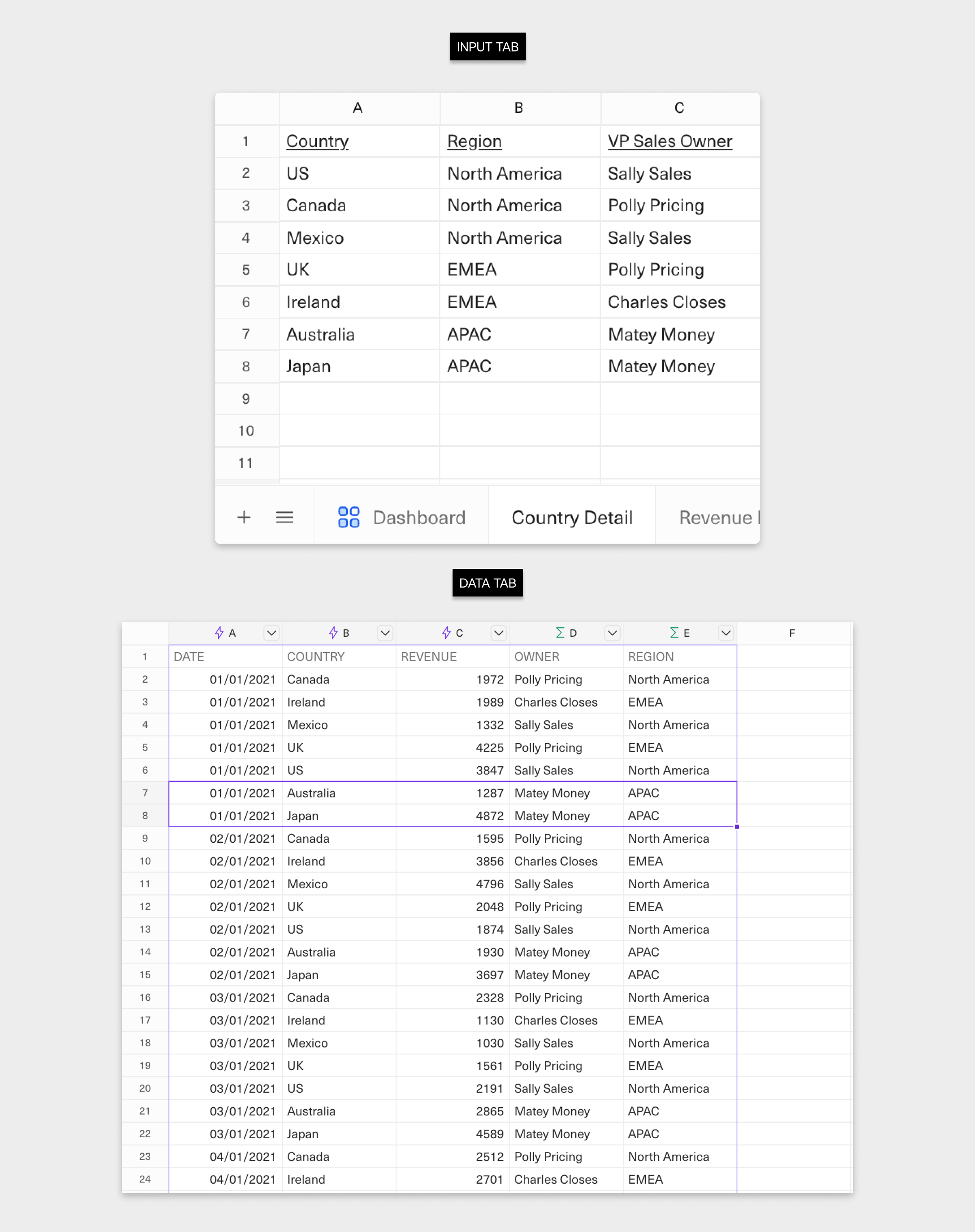 Now think back to the original, ***WRONG*** way we’d structured our `Data tab`, and imagine trying to add things like`Region` and `Owners` or new countries. It'd be a bunch of extra work and time wasted.
### In summary:
* Structure your query results in `Data tabs` in a tabular format
* Expand `Data tabs` downwards by adding new rows
* Avoid queries that add new data by adding additional columns
* Append calculations and additional metadata alongside your query results using `Input tabs`
Now we'll discover more benefits of structuring our `Data tab` in tabular format as we explore building out an analysis.
***
What’s Next
* [Building and sharing analyses](/docs/building-and-sharing-analyses)
Now think back to the original, ***WRONG*** way we’d structured our `Data tab`, and imagine trying to add things like`Region` and `Owners` or new countries. It'd be a bunch of extra work and time wasted.
### In summary:
* Structure your query results in `Data tabs` in a tabular format
* Expand `Data tabs` downwards by adding new rows
* Avoid queries that add new data by adding additional columns
* Append calculations and additional metadata alongside your query results using `Input tabs`
Now we'll discover more benefits of structuring our `Data tab` in tabular format as we explore building out an analysis.
***
What’s Next
* [Building and sharing analyses](/docs/building-and-sharing-analyses)