> ## Documentation Index
> Fetch the complete documentation index at: https://docs.equals.com/llms.txt
> Use this file to discover all available pages before exploring further.
# Segment
> Connect your Segment instance to Equals
Note: Segment is an enterprise connection so you'll be prompted to schedule a setup call with our team before getting connected.
You'll want to start by copying the webhook URL listed on the first screen from the pop-up modal.
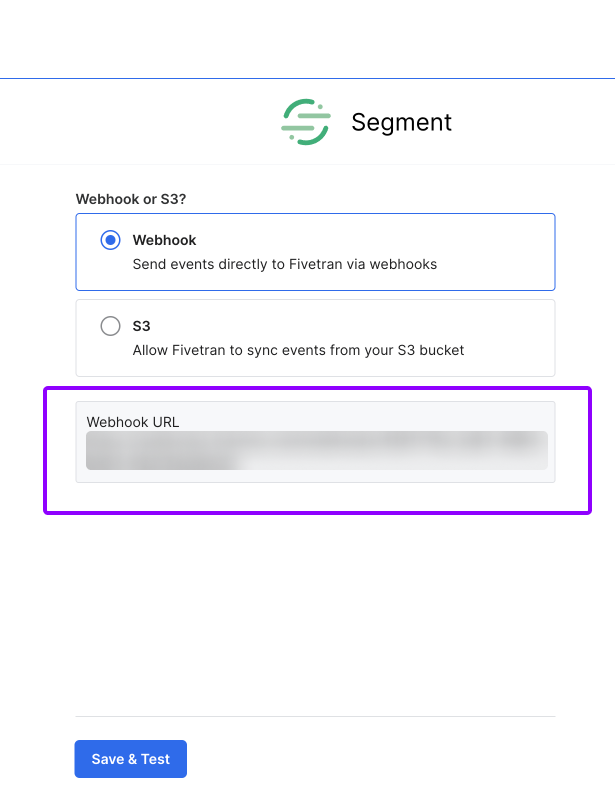 Then, you can select "Save & Test" and you can select "Save changes" in Equals. This will enable access to Segment. In order to begin the transfer of data, you'll want to [log into your Segment account](https://app.segment.com/login/?ref=nav) and take the following steps:
1. From the Segment web app, navigate to Connections > Catalog.
Then, you can select "Save & Test" and you can select "Save changes" in Equals. This will enable access to Segment. In order to begin the transfer of data, you'll want to [log into your Segment account](https://app.segment.com/login/?ref=nav) and take the following steps:
1. From the Segment web app, navigate to Connections > Catalog.
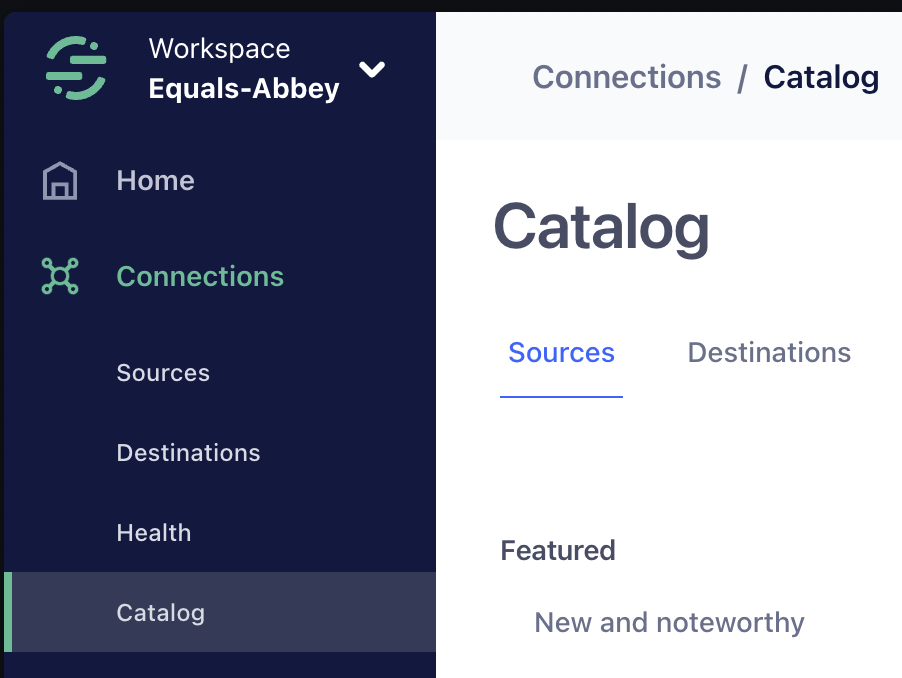 2. Search for Equals in the Destinations Catalog, and select the destination.
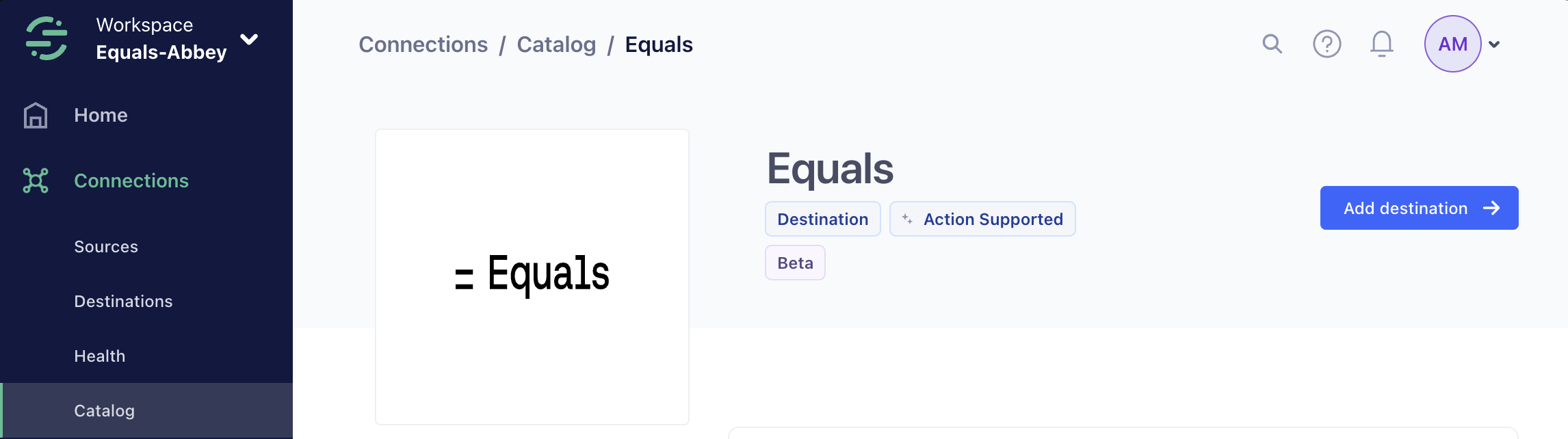 3. Click **Add destination**.
4. Select the data source that will send data to Equals and give this destination a name.
3. Click **Add destination**.
4. Select the data source that will send data to Equals and give this destination a name.
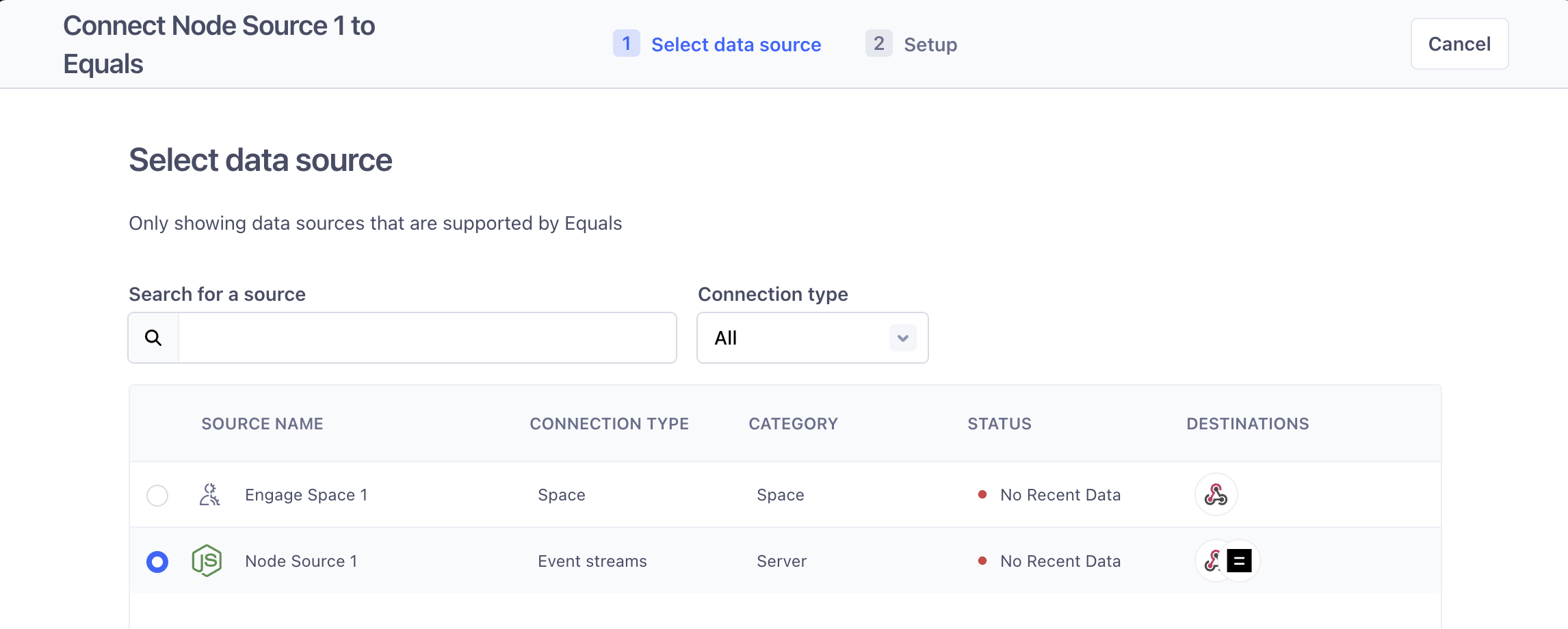 5. Add your webhook URL copied from Equals into the URL field on this next step.
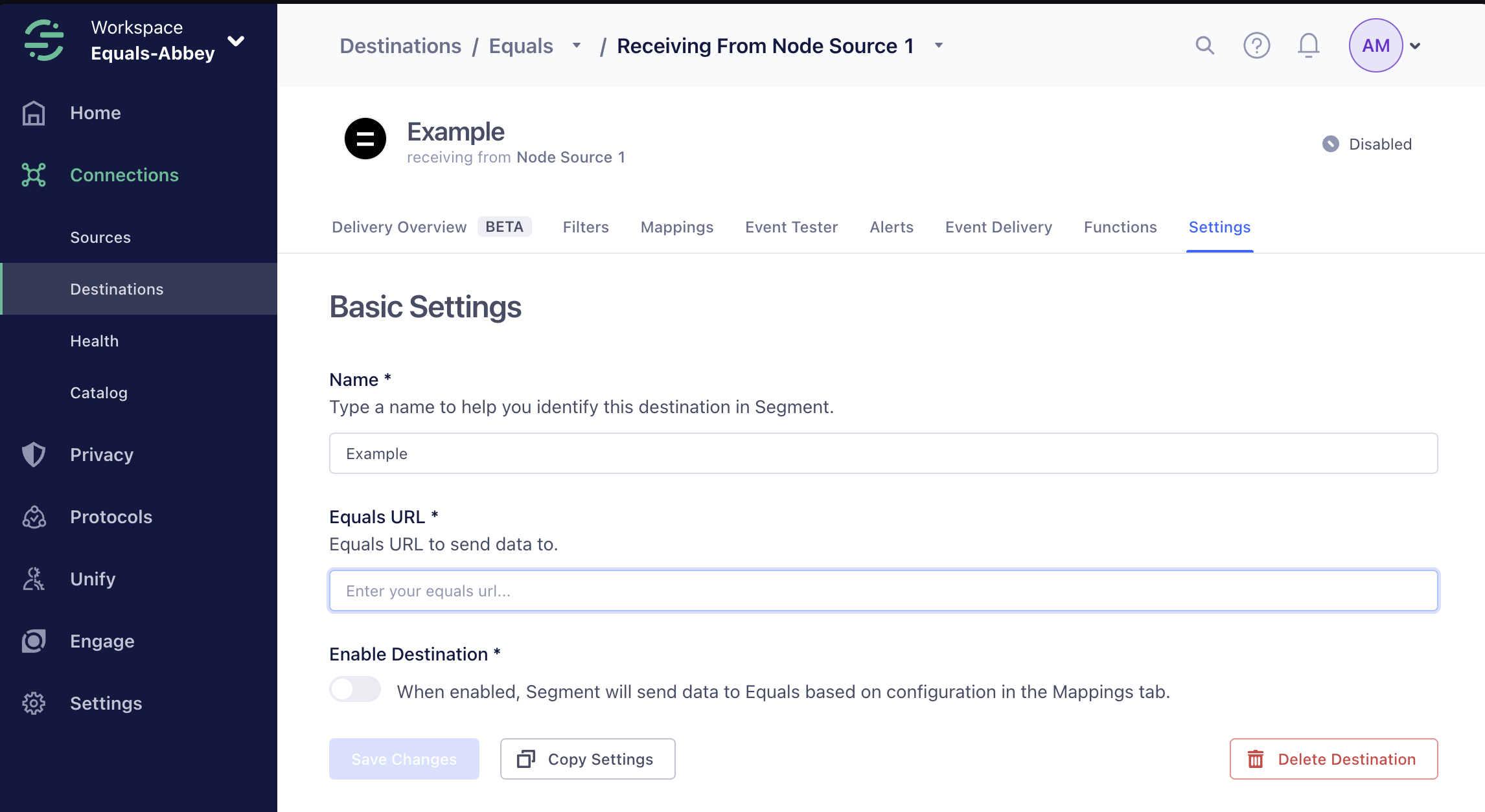 6. Select Enable destination.
7. If you want to be more granular about the data pushed from Segment into Equals, you can click on the "Mappings" header in the connection setting page (shown above) and can follow the steps in the Destinations Actions documentation on [Customizing mappings](https://segment.com/docs/connections/destinations/actions/#customize-mappings). You can create up to 5 mappings, each of which can send to a different webhook URL. After doing that, you can enable the destination and configured mappings.
***
[Salesforce](/docs/salesforce)
[Stripe](/docs/stripe)
6. Select Enable destination.
7. If you want to be more granular about the data pushed from Segment into Equals, you can click on the "Mappings" header in the connection setting page (shown above) and can follow the steps in the Destinations Actions documentation on [Customizing mappings](https://segment.com/docs/connections/destinations/actions/#customize-mappings). You can create up to 5 mappings, each of which can send to a different webhook URL. After doing that, you can enable the destination and configured mappings.
***
[Salesforce](/docs/salesforce)
[Stripe](/docs/stripe)