> ## Documentation Index
> Fetch the complete documentation index at: https://docs.equals.com/llms.txt
> Use this file to discover all available pages before exploring further.
# Send dashboards to email and Slack
> Put your reporting on autopilot by automatically distributing dashboards to stakeholders on custom schedules
What's better than dashboards that auto-update? Dashboards that automatically distribute.
### Who can add and edit a destinations
Only workspace members with `Can edit` permission for to the workbook can add and edit destinations. See [Manage dashboard access and permissions](https://docs.equals.com/docs/manage-dashboard-access-and-permissions) for more information.
# Adding a destination
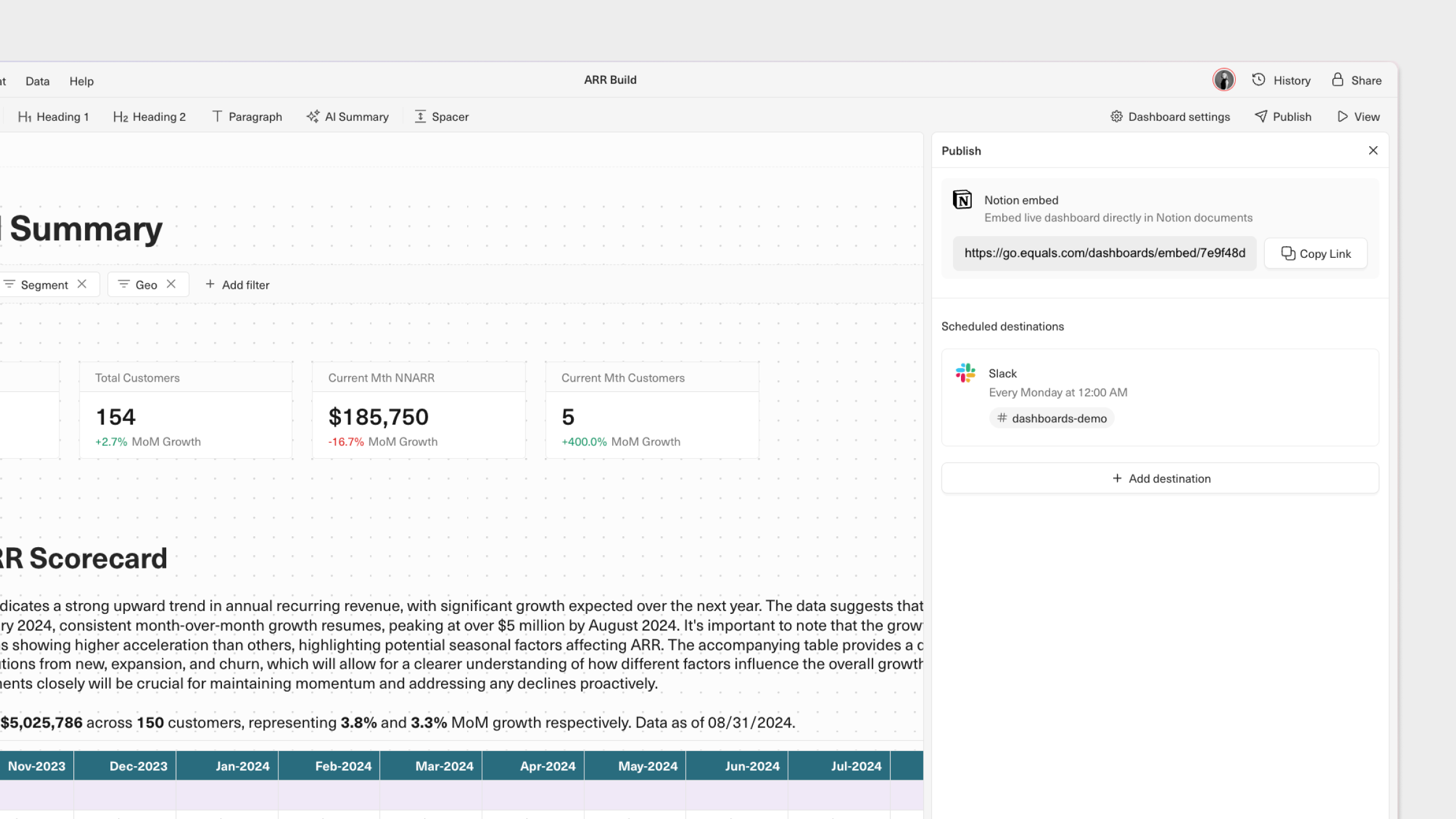
Click on `Publish`in the top-right of a dashboard. From here, you can configure custom schedules (hourly, daily, weekly, or monthly) to automatically send a dashboard snapshot to selected destinations, including email and Slack.
 # Configuring a destination
For both email and Slack, you'll see a preview of how your dashboard will appear and be able to choose:
1. How frequently you want to send a snapshot of your dashboard to that destination:
1. Hourly
2. Daily
3. Weekly
4. Monthly
2. The time you want it to send. Note that times are based on the workbook's defined timezone, which can be changed under `File` > `Settings`.
3. The email addresses or Slack channels you want to send it to.
You can perform a test send before saving the destination.
# Auto-refresh data before sending
Your dashboard's charts, tables and cells will auto-update whenever the underlying data is updated. We recommend scheduling your dashboard to send to destinations *after* any [scheduled queries](https://docs.equals.com/docs/query-scheduling) are set to run to ensure recipients receive the most up-to-date version of the data on your dashboard.
# Connecting Slack
To send dashboards to Slack, you must first connect your Equals Workspace to your Slack Workspace. If a connection has not already been established, you will be prompted to do this when adding Slack as a dashboard destination for the first time. You can configure this connection anytime in your [Equals workspace settings](https://go.equals.com/settings?tab=workspace).
Once your Equals Workspace is connected to your Slack Workspace, **you must invite the`Equals` Slack app to any *private* channels** you want to send dashboards to. This app is automatically installed when you perform step one. You do not need to do this for public channels. (Steps in Slack: open the invite page, select "Integrations" from the pop up, click on "Add an app" and search for "Equals".)
### A quick note on permissions
Equals respects permissions in Slack. This means that Equals users can only see the Slack channels they can access in Slack when creating, editing, or viewing a scheduled destination.
# FAQs
## Can I change a scheduled destination after saving it?
Yes, you can modify and delete a scheduled destination at any time.
## Do I need to be a Slack administrator to set up a connection to Slack?
Yes, you need to be an administrator of your Slack workspace to set up a connection to Equals.
***
[Manage dashboard access and permissions](/docs/manage-dashboard-access-and-permissions)
[Embed dashboards in Notion and more](/docs/embed-dashboards)
# Configuring a destination
For both email and Slack, you'll see a preview of how your dashboard will appear and be able to choose:
1. How frequently you want to send a snapshot of your dashboard to that destination:
1. Hourly
2. Daily
3. Weekly
4. Monthly
2. The time you want it to send. Note that times are based on the workbook's defined timezone, which can be changed under `File` > `Settings`.
3. The email addresses or Slack channels you want to send it to.
You can perform a test send before saving the destination.
# Auto-refresh data before sending
Your dashboard's charts, tables and cells will auto-update whenever the underlying data is updated. We recommend scheduling your dashboard to send to destinations *after* any [scheduled queries](https://docs.equals.com/docs/query-scheduling) are set to run to ensure recipients receive the most up-to-date version of the data on your dashboard.
# Connecting Slack
To send dashboards to Slack, you must first connect your Equals Workspace to your Slack Workspace. If a connection has not already been established, you will be prompted to do this when adding Slack as a dashboard destination for the first time. You can configure this connection anytime in your [Equals workspace settings](https://go.equals.com/settings?tab=workspace).
Once your Equals Workspace is connected to your Slack Workspace, **you must invite the`Equals` Slack app to any *private* channels** you want to send dashboards to. This app is automatically installed when you perform step one. You do not need to do this for public channels. (Steps in Slack: open the invite page, select "Integrations" from the pop up, click on "Add an app" and search for "Equals".)
### A quick note on permissions
Equals respects permissions in Slack. This means that Equals users can only see the Slack channels they can access in Slack when creating, editing, or viewing a scheduled destination.
# FAQs
## Can I change a scheduled destination after saving it?
Yes, you can modify and delete a scheduled destination at any time.
## Do I need to be a Slack administrator to set up a connection to Slack?
Yes, you need to be an administrator of your Slack workspace to set up a connection to Equals.
***
[Manage dashboard access and permissions](/docs/manage-dashboard-access-and-permissions)
[Embed dashboards in Notion and more](/docs/embed-dashboards)