> ## Documentation Index
> Fetch the complete documentation index at: https://docs.equals.com/llms.txt
> Use this file to discover all available pages before exploring further.
# Spreadsheet formatting
> Customize the way data is displayed in your workbook
This document captures all the ways to format your workbook, including borders, conditional formatting rules, and custom number formats.
# Borders
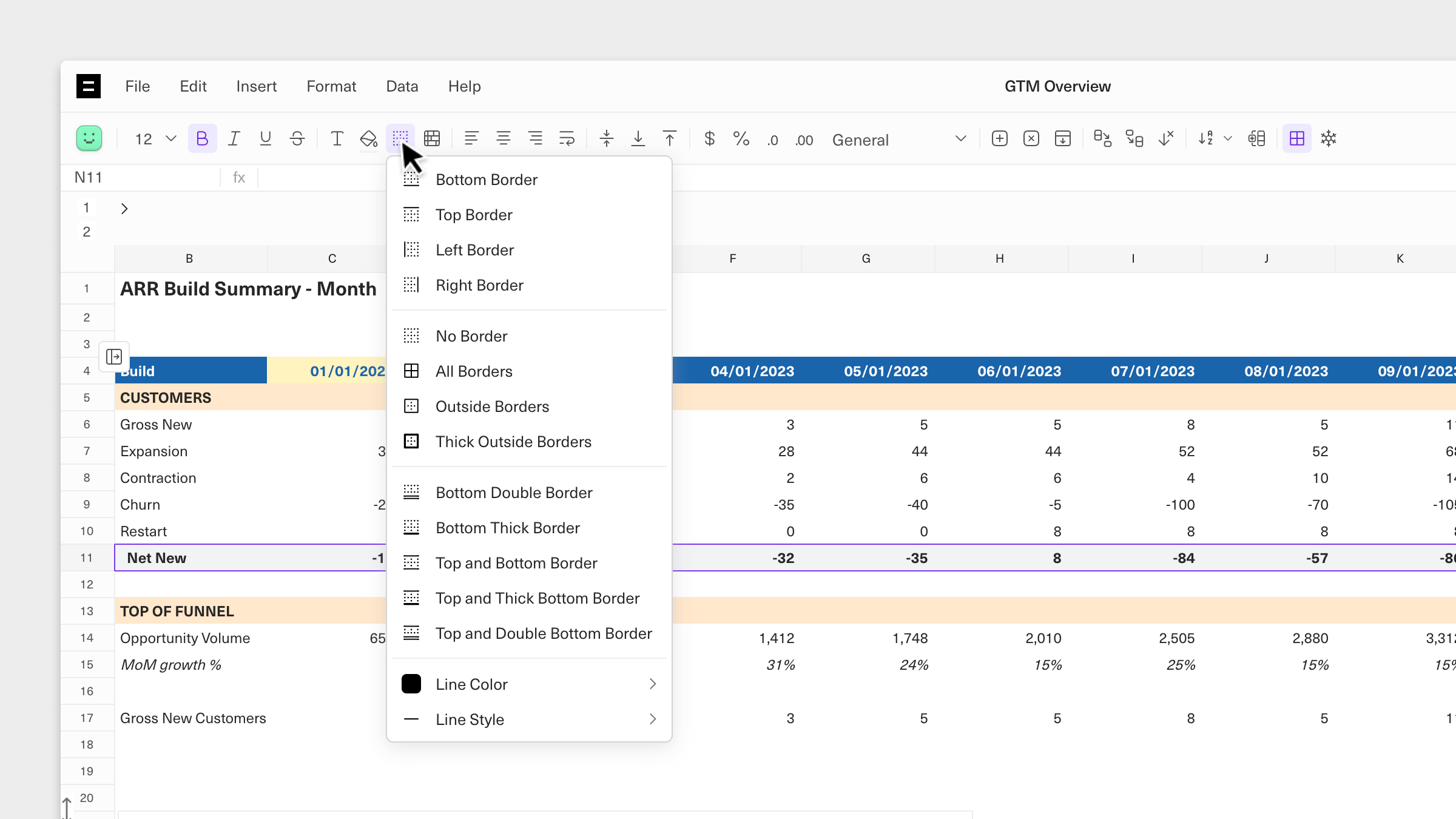
You can add borders to emphasize a range of cells or a single cell in your workbooks.
To get started, click on a cell or a selection of cells. Then, click on the borders icon from the toolbar. This will open a dropdown that will allow you to customize how you'd like your borders applied.
 # Conditional formatting
Conditional formatting makes it easy to highlight trends or patterns in your data by making cells or values easy to identify. You can use conditional formatting to color-code cells that meet a specific set of criteria.
# Conditional formatting
Conditional formatting makes it easy to highlight trends or patterns in your data by making cells or values easy to identify. You can use conditional formatting to color-code cells that meet a specific set of criteria.
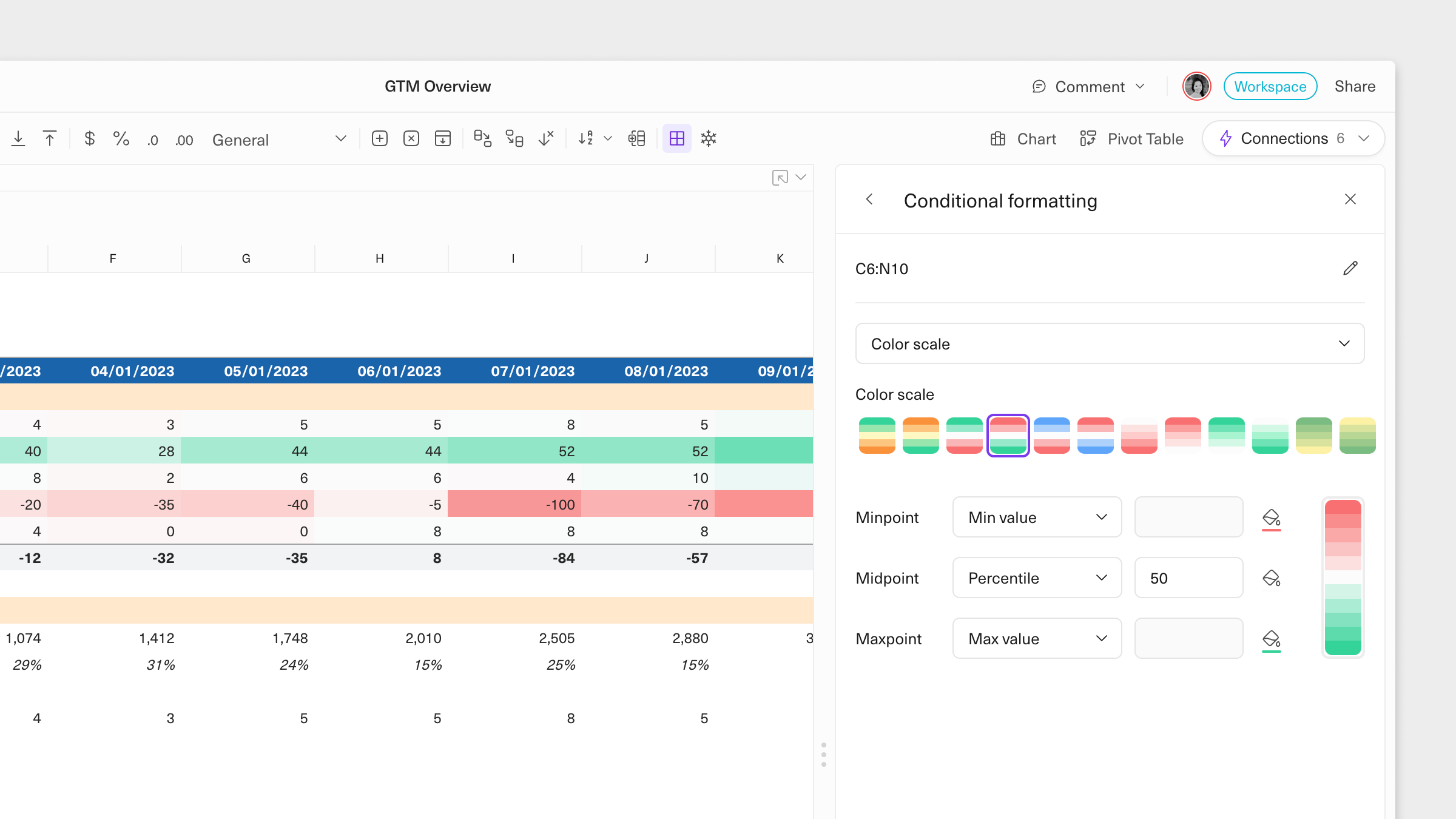 To get started:
1. Select a cell or a range of cells and click on *Format > Conditional Formatting > New Rule* from the toolbar.
2. Set rules for your formatting. You can toggle between the *Highlight cell* option, which allows you to granularly set the conditions for your formatting, or you can use the *Color scale* option which will apply shading based on the median value in your data range.
Selecting *Manage Rules* (*Format > Conditional Formatting > Manage Rules*) will allow you to view all of the formatting criteria applied in your sheet and make changes.
# Custom number formatting
With custom number formatting, you can change how your data is displayed. For example, you can set all negative numbers in parentheses or add your currency symbol to spend data.
To get started:
1. Select a cell or a range of cells and click on *Format > Conditional Formatting > New Rule* from the toolbar.
2. Set rules for your formatting. You can toggle between the *Highlight cell* option, which allows you to granularly set the conditions for your formatting, or you can use the *Color scale* option which will apply shading based on the median value in your data range.
Selecting *Manage Rules* (*Format > Conditional Formatting > Manage Rules*) will allow you to view all of the formatting criteria applied in your sheet and make changes.
# Custom number formatting
With custom number formatting, you can change how your data is displayed. For example, you can set all negative numbers in parentheses or add your currency symbol to spend data.
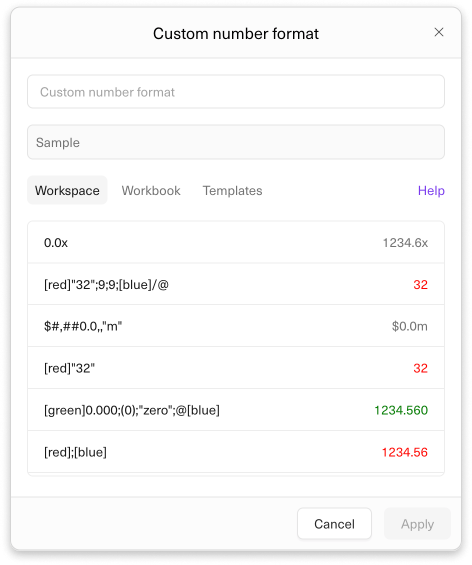 To apply a custom number format to a selection on your sheet:
1. Click on *Format* in your workbook's toolbar. This will open a console where you can configure how your data should be presented.
2. Write a set of rules in the console that will be applied to the data on your sheet. You can specify as many rules as you need. Clicking on "Templates" will allow you to browse common formatting options to use as a starting point.
## Syntax for setting formats
To use colors in your format, write a color name in brackets (for example, `[Blue]`) anywhere in the desired part of the format. You must use English color names. Supported colors include: `white`, `red`, `blue`, `green`, `magenta`, `yellow`, and `cyan`. You can also use `Color#`, where `#` is a number between 1 and 56 corresponding to the [56 Excel ColorIndex colors.](http://dmcritchie.mvps.org/excel/colors.htm)
If you specify a color in the custom format, that color will take precedence over colors selected in the text color picker.
The following symbols can be used to format numbers:
| Symbol | Result | Example |
| ------------------ | ------------------- | ------------------------------------------------------------------------------------- |
| 0 | Digit or Zero | `2` formatted with `00` will show `02` |
| # | Digit if needed | `2` formatted with `##` will show `2` |
| ? | Digit or Space | `2` formatted with `??` will show `2` |
| . | Decimal point | `1.345` formatted with `#.#` will show `1.3` |
| , | Thousands separator | `1345` formatted with `#,##0` will show `1,345` |
| % | Percentage | `0.3` formatted with `0%` will show `30%` |
| e-, e+ | Exponential format | `12200000` formatted with `0.00E+00` will emit `1.22E+07` |
| "text" | Pass-through | `2` formatted with `0 "USD"` will show `2 USD` |
| \\ | Escape | Pass the next character through as-is |
| \$, -, +, /, (, ), | Pass-through | Printed as-is without quotes |
| @ | Text value | Non-numeric value as-is: `two` formatted with `"one"@"three"` will show `onetwothree` |
Let me know if you need further help!
***
[Keyboard shortcuts](/docs/keyboard-shortcuts)
[Pivot tables](/docs/pivot-tables)
To apply a custom number format to a selection on your sheet:
1. Click on *Format* in your workbook's toolbar. This will open a console where you can configure how your data should be presented.
2. Write a set of rules in the console that will be applied to the data on your sheet. You can specify as many rules as you need. Clicking on "Templates" will allow you to browse common formatting options to use as a starting point.
## Syntax for setting formats
To use colors in your format, write a color name in brackets (for example, `[Blue]`) anywhere in the desired part of the format. You must use English color names. Supported colors include: `white`, `red`, `blue`, `green`, `magenta`, `yellow`, and `cyan`. You can also use `Color#`, where `#` is a number between 1 and 56 corresponding to the [56 Excel ColorIndex colors.](http://dmcritchie.mvps.org/excel/colors.htm)
If you specify a color in the custom format, that color will take precedence over colors selected in the text color picker.
The following symbols can be used to format numbers:
| Symbol | Result | Example |
| ------------------ | ------------------- | ------------------------------------------------------------------------------------- |
| 0 | Digit or Zero | `2` formatted with `00` will show `02` |
| # | Digit if needed | `2` formatted with `##` will show `2` |
| ? | Digit or Space | `2` formatted with `??` will show `2` |
| . | Decimal point | `1.345` formatted with `#.#` will show `1.3` |
| , | Thousands separator | `1345` formatted with `#,##0` will show `1,345` |
| % | Percentage | `0.3` formatted with `0%` will show `30%` |
| e-, e+ | Exponential format | `12200000` formatted with `0.00E+00` will emit `1.22E+07` |
| "text" | Pass-through | `2` formatted with `0 "USD"` will show `2 USD` |
| \\ | Escape | Pass the next character through as-is |
| \$, -, +, /, (, ), | Pass-through | Printed as-is without quotes |
| @ | Text value | Non-numeric value as-is: `two` formatted with `"one"@"three"` will show `onetwothree` |
Let me know if you need further help!
***
[Keyboard shortcuts](/docs/keyboard-shortcuts)
[Pivot tables](/docs/pivot-tables)