> ## Documentation Index
> Fetch the complete documentation index at: https://docs.equals.com/llms.txt
> Use this file to discover all available pages before exploring further.
# Working with dates
> Tips and tricks on how to analyze dates
Spreadsheet formulas may return different data depending on the format of the cells being analyzed. Here are a few tips and tricks to keep in mind when working with dates in spreadsheets.
### Identifying cell formatting
The first thing you'll want to do when writing a formula based on a date value is to ensure that the cell is storing the data as a date. We have two cells with the same data below, each stored differently:
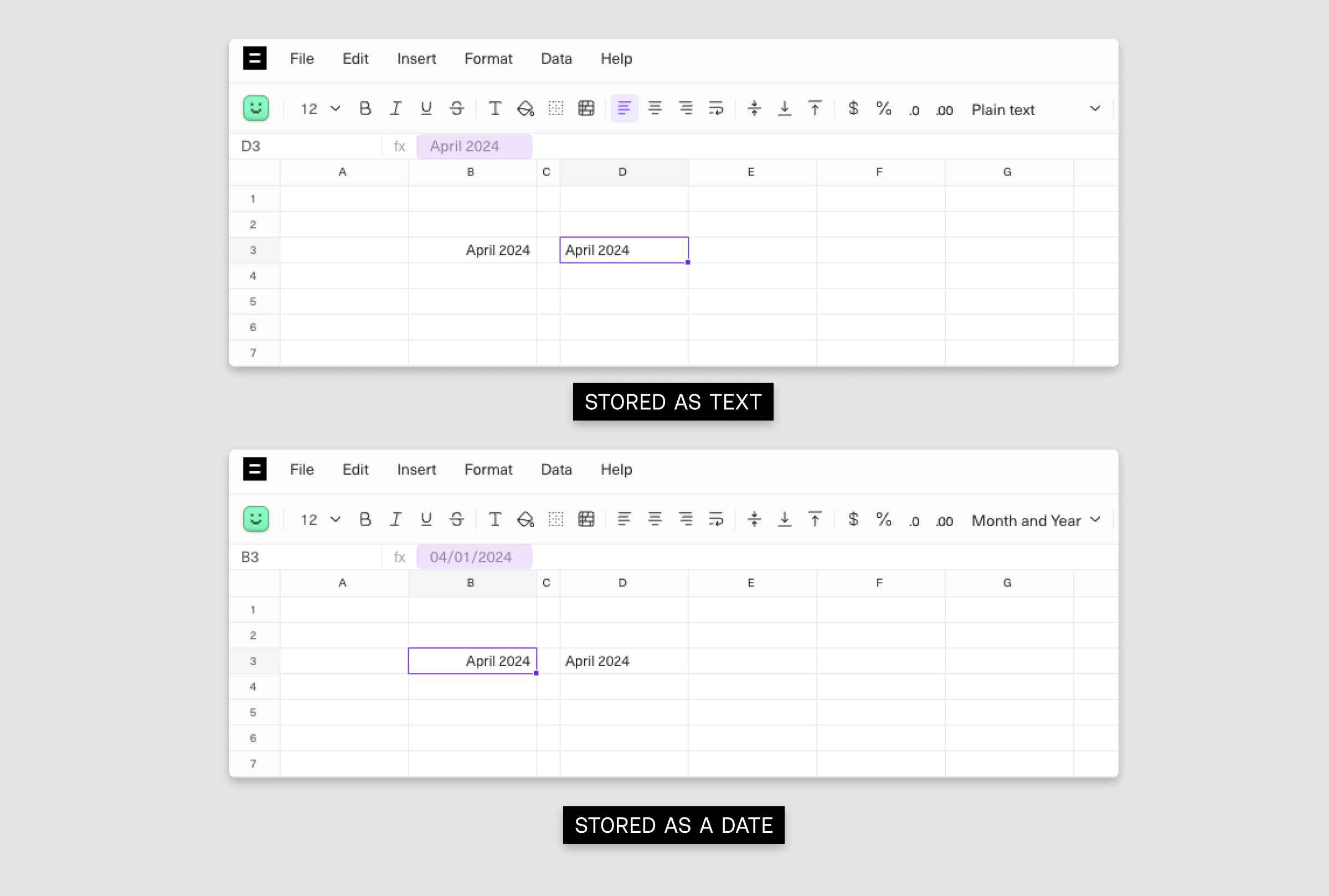 While at face value both cells appear to display the date April 1st, 2024, only one is storing the date as a date while the other stores it as a text string. A good rule of thumb for identifying this quickly is to see if the cell's content is left-aligned. If so, it is likely a text string. If the cell's content is right-aligned, it's likely stored as a date.
### How formatting will change formula results
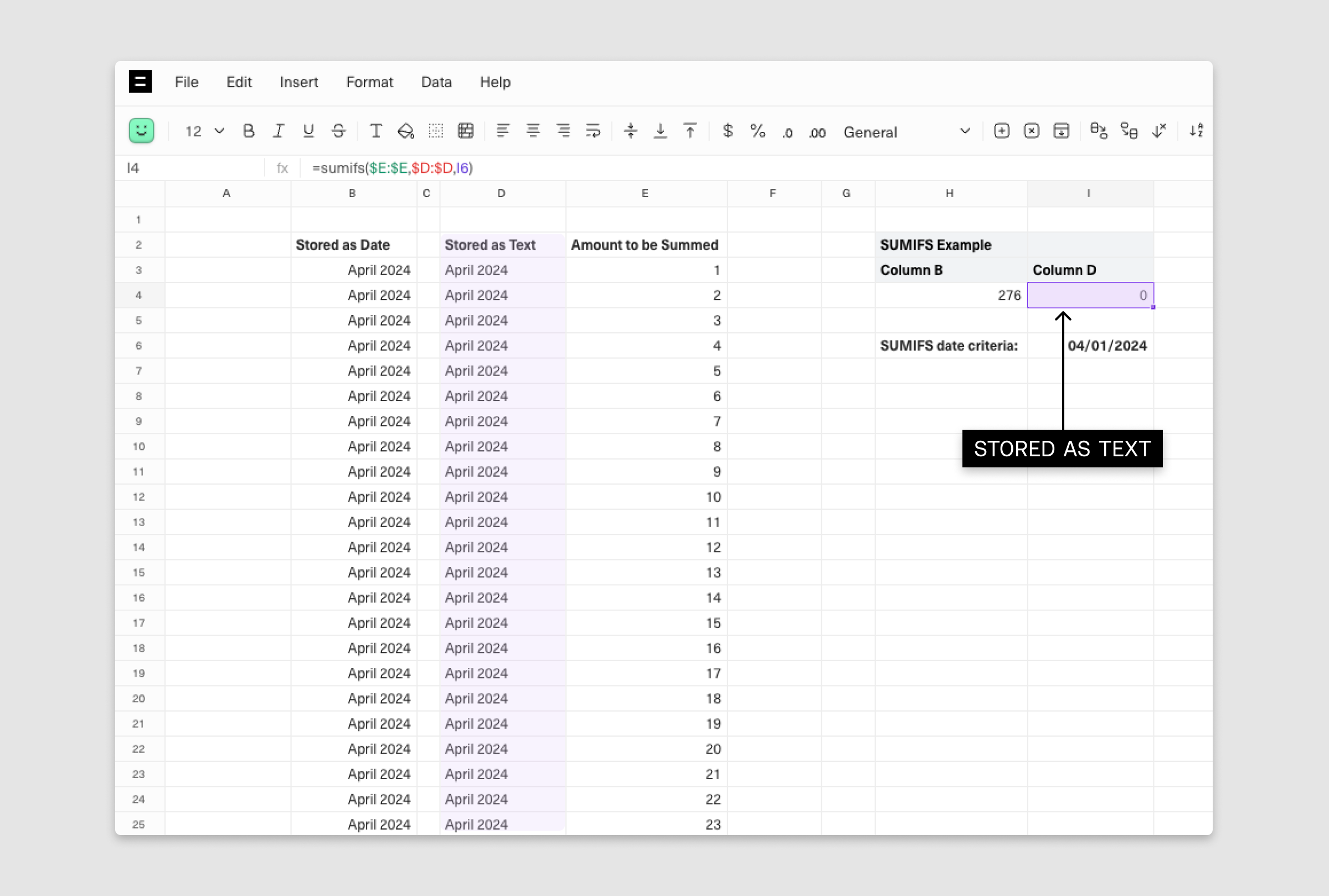
Let's say you want to take a sum of the amount paid by your customers for the month of April. If you write a SUMIFS formula that attempts to SUM values that are stored as text (column D) and your criteria (cell I6) is stored as a date, your output will be 0.
While at face value both cells appear to display the date April 1st, 2024, only one is storing the date as a date while the other stores it as a text string. A good rule of thumb for identifying this quickly is to see if the cell's content is left-aligned. If so, it is likely a text string. If the cell's content is right-aligned, it's likely stored as a date.
### How formatting will change formula results
Let's say you want to take a sum of the amount paid by your customers for the month of April. If you write a SUMIFS formula that attempts to SUM values that are stored as text (column D) and your criteria (cell I6) is stored as a date, your output will be 0.
 Notice how this will not happen if you are using the date field as your lookup column (column B).
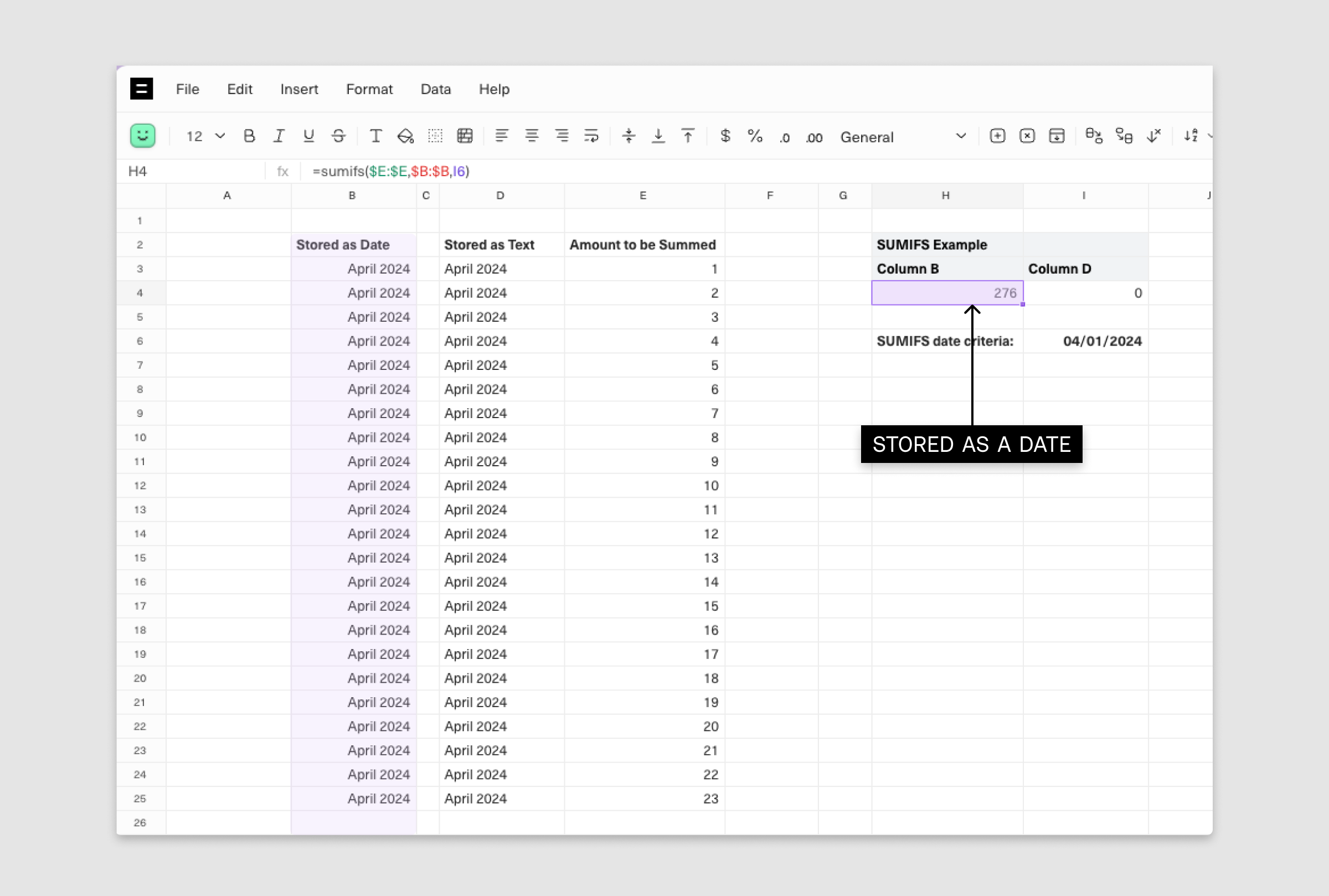 When writing SUMIFS or COUNTIFS statements, we recommend leveraging date values instead of string values.
### Common mistakes
Oftentimes it's tempting to write a TRIM(LEFT...) formula to extract a date value from a timestamp (which is a string value). Instead of leveraging a formula that will return another string value, we'd recommend using =DATE(YEAR(),MONTH(),DAY()) for these cases, or =DATEVALUE(). This will ensure that the output is stored as a serialized date number (ex: April 1, 2024 = 45383) under the hood and will make sure that all formulas evaluate as expected.
***
[Filters and sorts](/docs/filters-and-sorts)
[Date matching formulas](/docs/date-matching-formulas)
When writing SUMIFS or COUNTIFS statements, we recommend leveraging date values instead of string values.
### Common mistakes
Oftentimes it's tempting to write a TRIM(LEFT...) formula to extract a date value from a timestamp (which is a string value). Instead of leveraging a formula that will return another string value, we'd recommend using =DATE(YEAR(),MONTH(),DAY()) for these cases, or =DATEVALUE(). This will ensure that the output is stored as a serialized date number (ex: April 1, 2024 = 45383) under the hood and will make sure that all formulas evaluate as expected.
***
[Filters and sorts](/docs/filters-and-sorts)
[Date matching formulas](/docs/date-matching-formulas)