

Claude
Team, Enterprise
Adding the Equals MCP server to your Claude team will allow anyone on your team to connect Equals to their Claude sessions.You must be an Owner in your Claude team to add a custom connector.
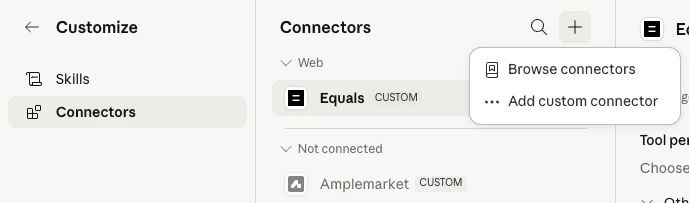
https://go.equals.com/api/mcp as the Remote MCP Server URL, and then click Add.
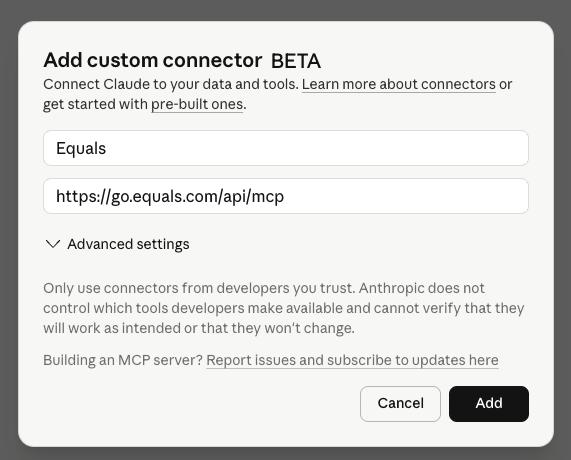
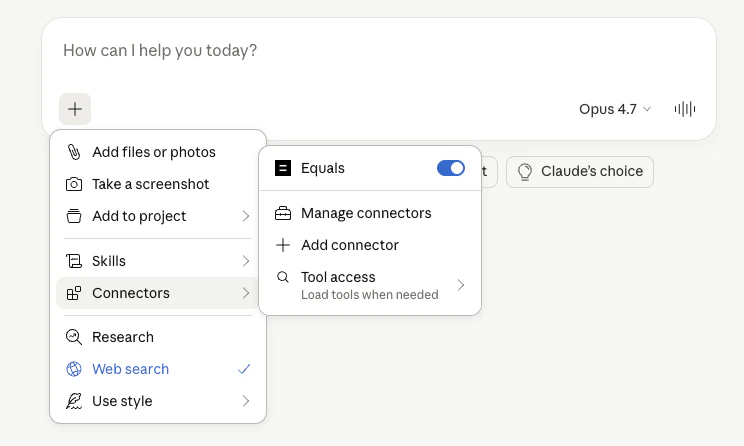
Free, Pro
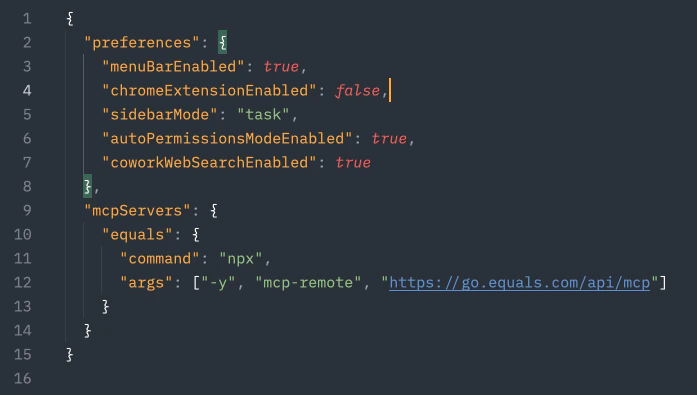
Go to Settings → Developer and click Edit config: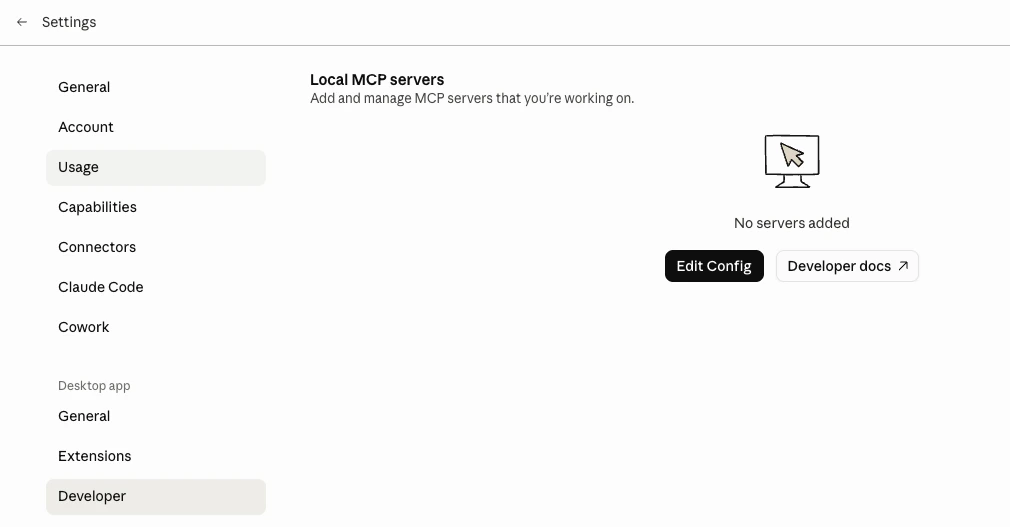
claude_desktop_config.json file. Open this file with a text editor and add the following:
Claude Code
Run the following in your terminal:/mcp inside a Claude Code session to authenticate.
ChatGPT
Web
Visit https://chatgpt.com/plugins and click the plus on the top right.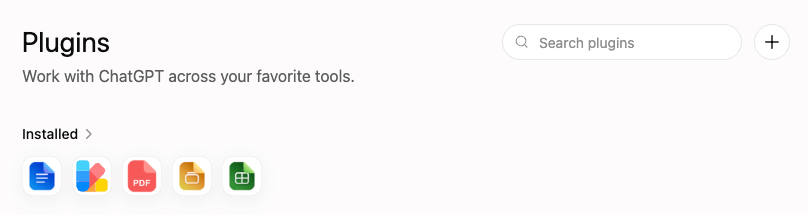
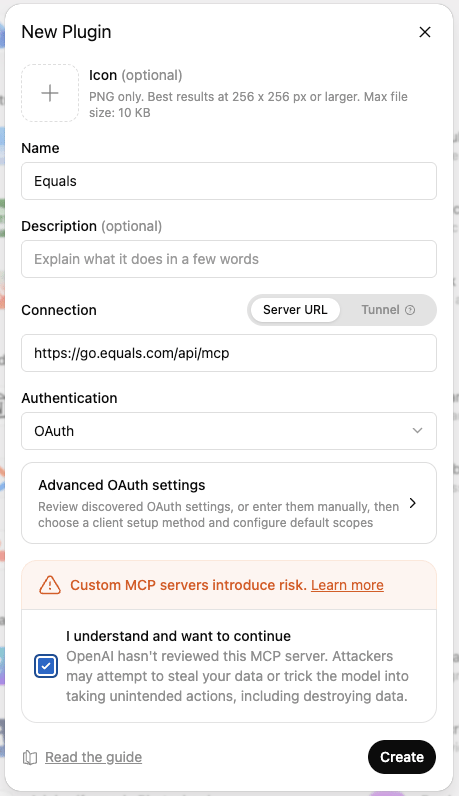
https://go.equals.com/api/mcp as the Connection, check I understand and want to continue, and then click Create.
Desktop
Go to Settings → Plugins → MCPs and click Add server.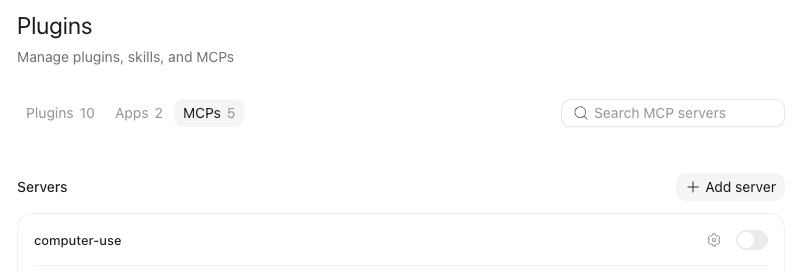
https://go.equals.com/api/mcp as the URL. Leave the Bearer token env var and all of the headers fields blank. Then click Save.
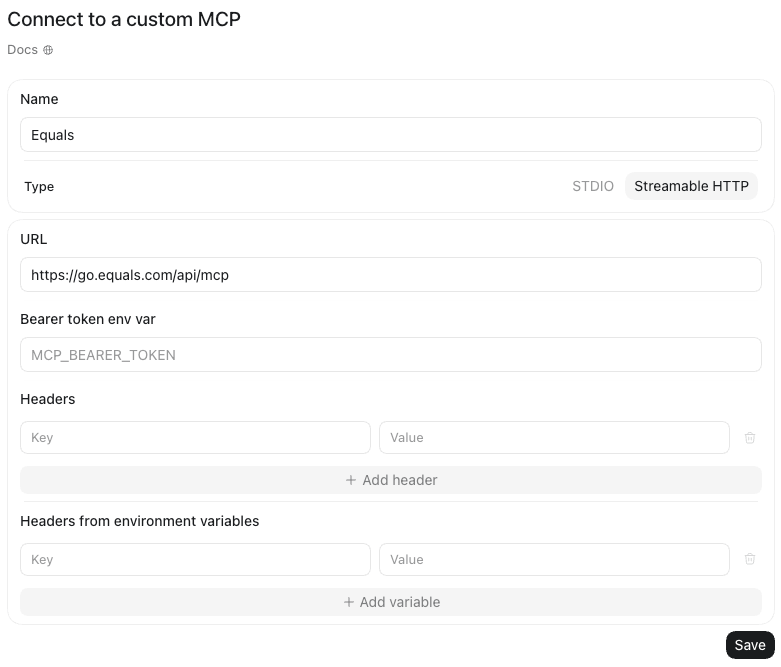
Codex
Add the server to~/.codex/config.toml (or .codex/config.toml in a project for a project-scoped setup):
https://go.equals.com/api/mcp, then click Authenticate.
Cursor
Open Cursor Settings → MCP, then add a custom server:VS Code (GitHub Copilot)
- Open the Command Palette (
Ctrl/Cmd + Shift + P) and run MCP: Add Server - Select Command (stdio)
- Enter:
- Name it
equals - Activate it via MCP: List Servers
settings.json:
Windsurf
- Open Settings (
Ctrl/Cmd + ,) - Scroll to Cascade → MCP Servers
- Add a custom server:
Zed
Open your settings (Cmd + ,) and add:
Other Tools
If your tool isn’t listed above, it can still connect — the setup follows one of the same two patterns:- If it supports remote MCP servers, add
https://go.equals.com/api/mcpwherever it accepts a server URL, as in the Claude, ChatGPT, and Codex setups above. - If it only supports local MCP servers, configure it to run the command
npx -y mcp-remote https://go.equals.com/api/mcp, which bridges to the remote server — the same pattern as the Cursor, Windsurf, and Zed configs above.
What You Can Do
Once connected, your AI assistant can:Find Workbooks
Search workbooks in your Equals workspace by name or content, and list your team’s trusted workbooks — curated, vetted analyses that are surfaced first as the most reliable sources to reference.Query Datasources
List connected datasources, explore their schema, and directly run SQL queries.Ask Equals
Ask questions about your data in natural language. The Equals agent can query all your connected datasources and read any workbook you have access to, and runs its own analysis to find answers. You can ask follow-up questions in the same conversation, and answers can include a full workbook you can open in Equals. Ask Equals consumes Equals AI credits.Troubleshooting
Authentication Errors
Make sure you have an active Equals account and that your workspace has MCP enabled. Try disconnecting and reconnecting to go through the authorization flow again.npx mcp-remote Not Found
Make sure Node.js is installed:
Windows
If you are on Windows, you may need to replace"command": "npx", with "command": "C:\\Program Files\\nodejs\\npx.cmd",.